


FlowSavvy is worth trying if your calendar contains fixed meetings but much of your real work still lives in a flexible task list. In our Free-plan test, it placed tasks from their durations and deadlines, rebuilt the schedule when conflicts appeared, preserved manual intent, split work around a meeting, and made impossible workload visible.
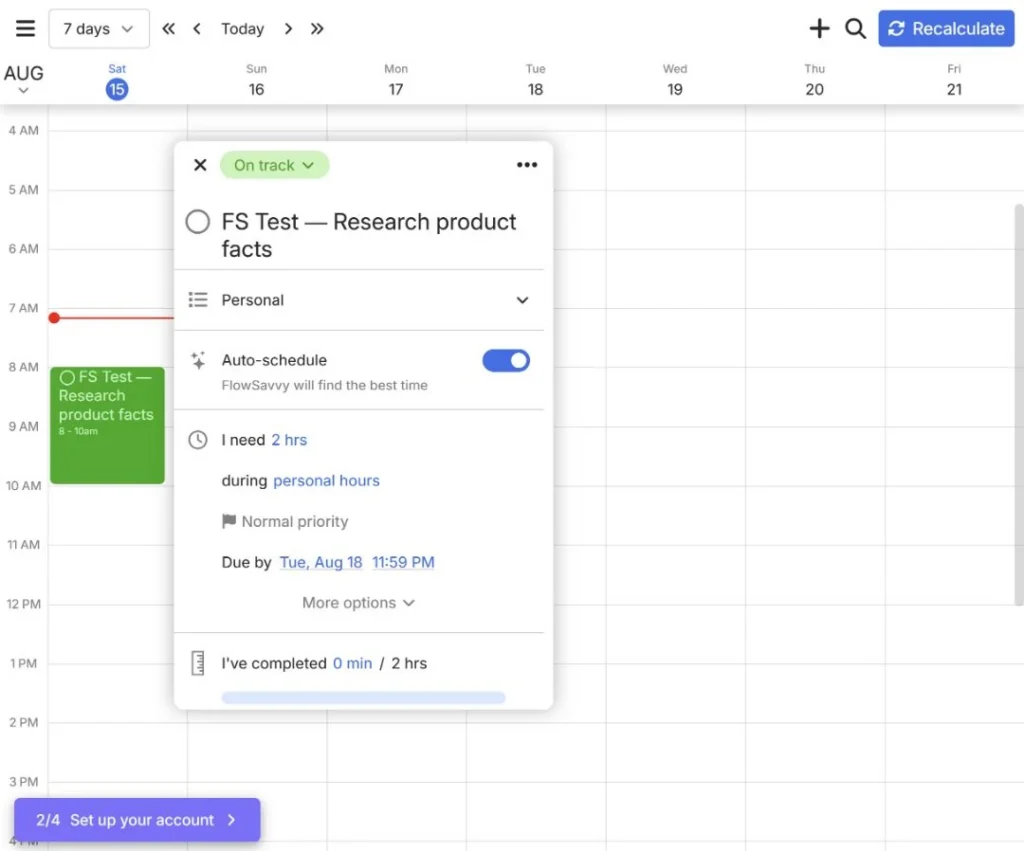
The important qualifier is configuration. Our first schedule placed work at 8:00 a.m. on a weekend because the default personal hours profile allowed it. After we set Monday–Friday availability, flexible work moved into the workweek—but a task we had manually locked on Saturday stayed there. FlowSavvy follows the constraints you give it, including inconvenient ones.
What is FlowSavvy?
FlowSavvy is a calendar-based task auto-scheduler. Events remain fixed, while flexible tasks receive a duration, scheduling-hours profile, start constraint, and deadline. FlowSavvy then assigns time blocks and recalculates them when the calendar changes.
That makes it different from a conventional to-do list. A to-do list says what remains; FlowSavvy tries to decide when the work can happen. It is also narrower than a full team project-management platform: its strongest use case is personal schedule construction rather than shared boards, resource planning, or complex team workflows.
If you want to reproduce the workflow before judging the product, follow our step-by-step FlowSavvy setup guide.
How we tested FlowSavvy
We used a new Free account containing synthetic FS Test — data only. The workload included flexible research, writing, and screenshot tasks; a weekday repeating task; a manually locked task; fixed meetings; a three-hour Splittable project; and a deliberately impossible 20-hour task.
We tested:
- Initial scheduling from duration and deadline inputs.
- Automatic rescheduling after a fixed conflict.
- Monday–Friday scheduling hours.
- Partial progress and task completion.
- Lock versus Postpone after manually dragging work.
- A repeating auto-scheduled task and the Free limit message.
- Splitting a task around a fixed event.
- Overload warnings, Change due date, and Auto-ignore.
We then activated Pro for a focused buying-decision module. We tested aligned priority levels, an A → B → C dependency chain, separate work and personal scheduling profiles, an in-range task beyond the former two-week cutoff, a fourth repeating auto-scheduled task, a sixth list, and outward delivery to Google Calendar.
We did not benchmark mobile apps, measure exact external-calendar propagation time, test long-term team use, cancel the trial, inspect the post-Pro account state, or compare FlowSavvy symmetrically with Motion or Reclaim. This remains a bounded hands-on review, not a universal productivity score.
What FlowSavvy did well
It rebuilt flexible work when a fixed conflict appeared
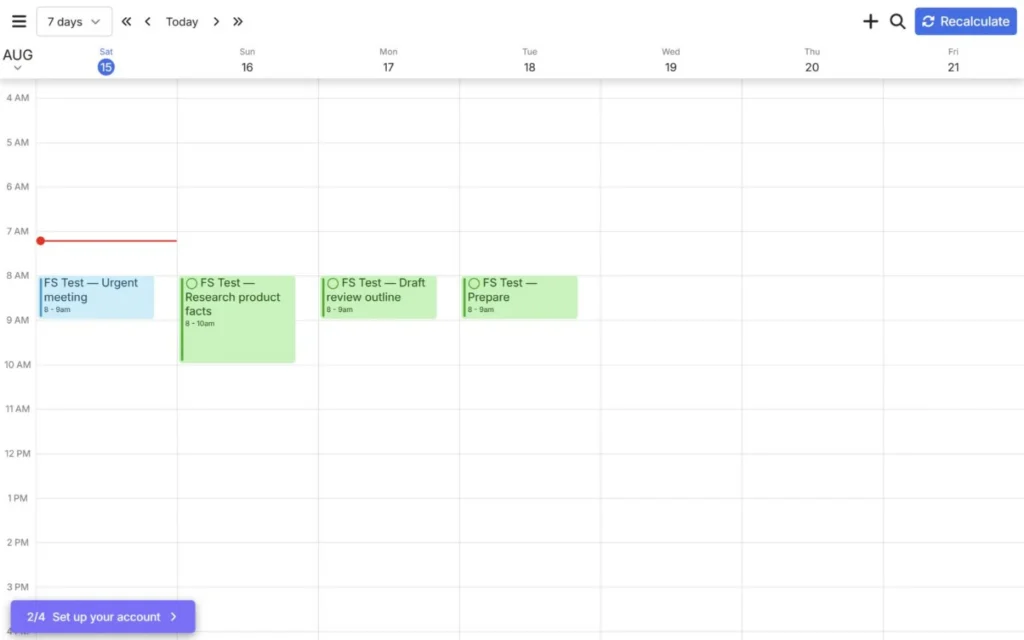
We added FS Test — Urgent meeting directly over the first hour of a two-hour flexible research task. FlowSavvy moved the research task and the tasks behind it without requiring a separate Recalculate click. The meeting remained fixed, as expected.
This was the core behavior we wanted to verify. The value of an auto-scheduler is not merely drawing blocks on an empty calendar; it is rebuilding flexible work when real life changes.
Lock and Postpone express different kinds of intent
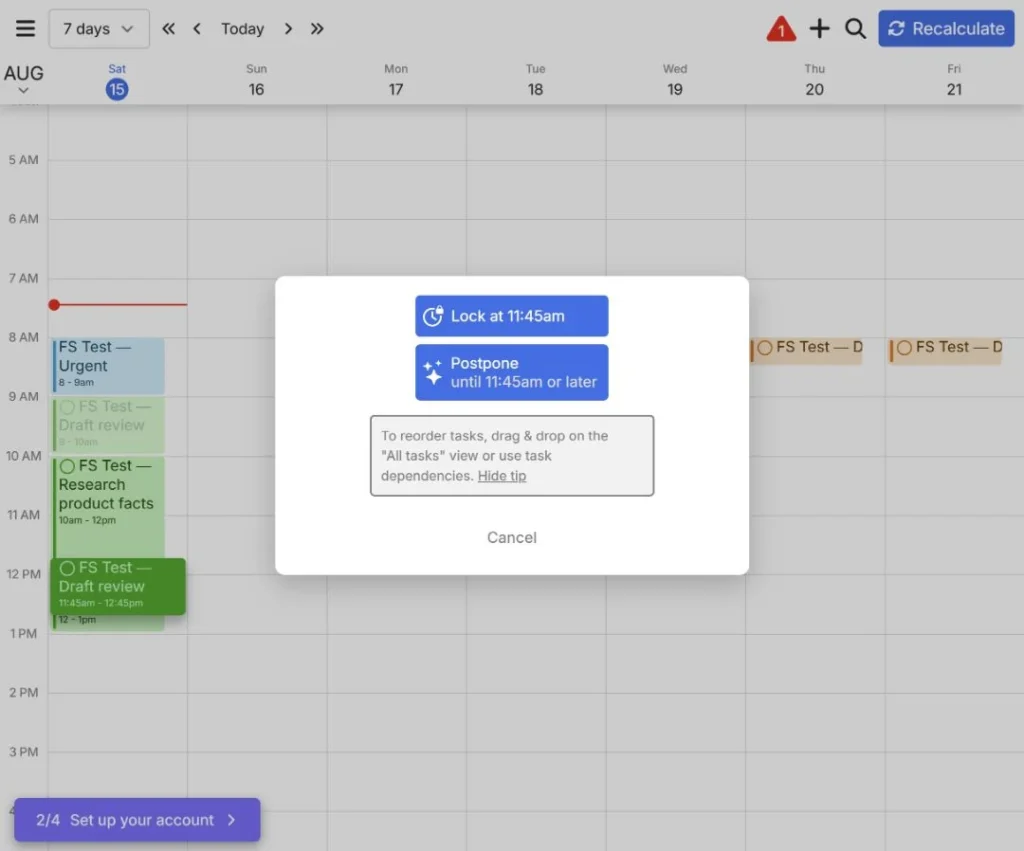
Dragging a flexible task did not silently turn it into an ambiguous manual override. FlowSavvy asked whether we wanted to Lock it at that time or Postpone it until that time or later.
Lock preserved the selected placement through recalculation. Postpone acted as a not-before constraint: after we postponed a task until 11:45 a.m. or later, FlowSavvy placed it at noon rather than forcing the exact dragged time.
This distinction is useful. Lock means the placement matters; Postpone means the work should remain flexible but must not begin too early.
Splittable preserved total duration around a meeting
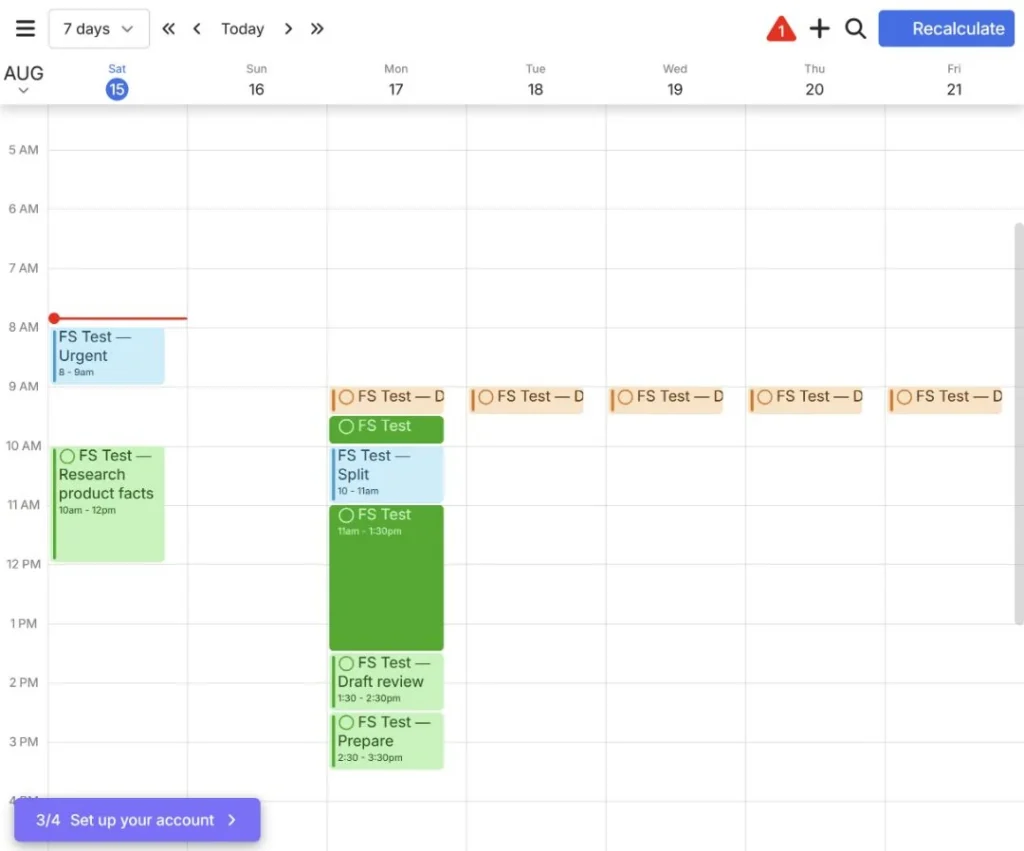
Our three-hour Splittable project initially stayed in one continuous 09:30–12:30 block because uninterrupted time was available. We then inserted a fixed event from 10:00–11:00.
FlowSavvy divided the project into 09:30–10:00 and 11:00–13:30. Those two segments still totaled three hours, while later flexible tasks moved behind them.
That result also clarifies what Splittable means: it permits fragmentation when needed; it does not force every large task into small pieces.
Progress and completion remained visible
Recording one hour of progress on a two-hour task left a completed block and rescheduled the remaining hour. Marking another task complete created a gray, strikethrough completion record. When we reopened that task and ran Recalculate, it returned to the flexible schedule.
We also completed one occurrence of a weekday repeating task. Later occurrences remained active, so one completed session did not close the entire series.
Where FlowSavvy fell short
The first schedule is only as sensible as the availability profile
Before we edited scheduling hours, the default profile placed work at 8:00 a.m. on Saturday and Sunday. This was not evidence that the algorithm had failed; it was evidence that the profile did not match our intended workweek.
After the profile was changed to Monday–Friday, 09:00–17:00, unlocked flexible work moved into weekday hours. The fixed Saturday meeting and the research task we had manually locked on Saturday did not move. Explicit intent correctly outweighed the new general availability rule.
The practical lesson is to configure scheduling hours before judging schedule quality.
FlowSavvy exposes impossible work but cannot make it possible
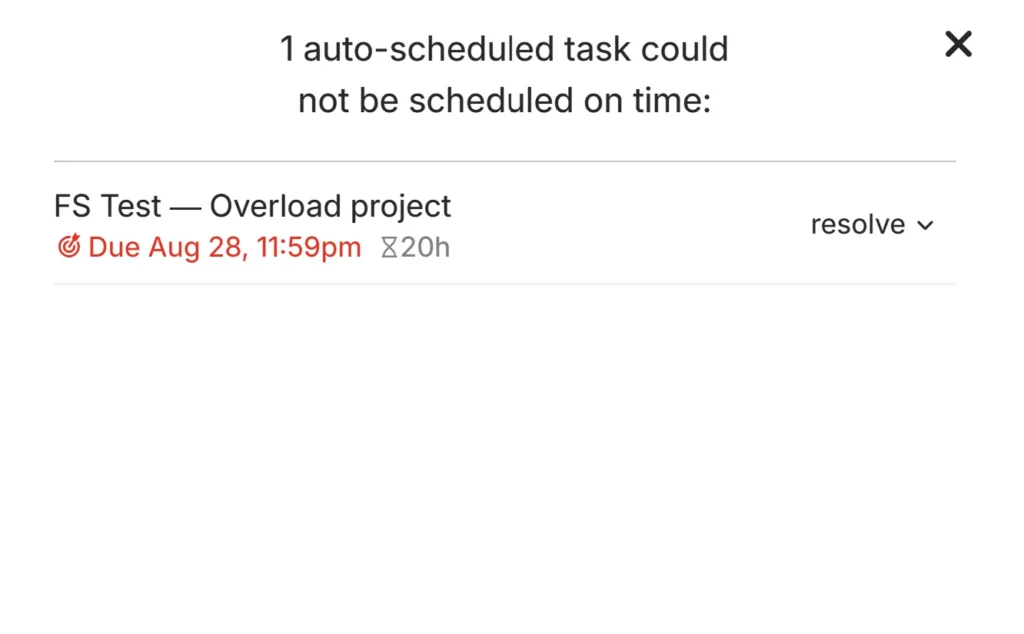
We created a 20-hour non-splittable task due the following day. FlowSavvy displayed Task added, but not scheduled and a red warning instead of pretending the work would finish on time.
The detailed panel identified the task, deadline, and 20 hours remaining. Its Resolve menu offered Complete, Change due date, Turn auto-ignore on, and Delete.
Changing the deadline from August 16 to August 28 did not solve the problem. With an eight-hour daily scheduling window and a non-splittable 20-hour requirement, more days still did not create one continuous 20-hour block. The causal explanation is an inference from the configuration, but the broader lesson is solid: check duration, Splittable, availability, and deadline together.
Auto-ignore removes pressure rather than completing work
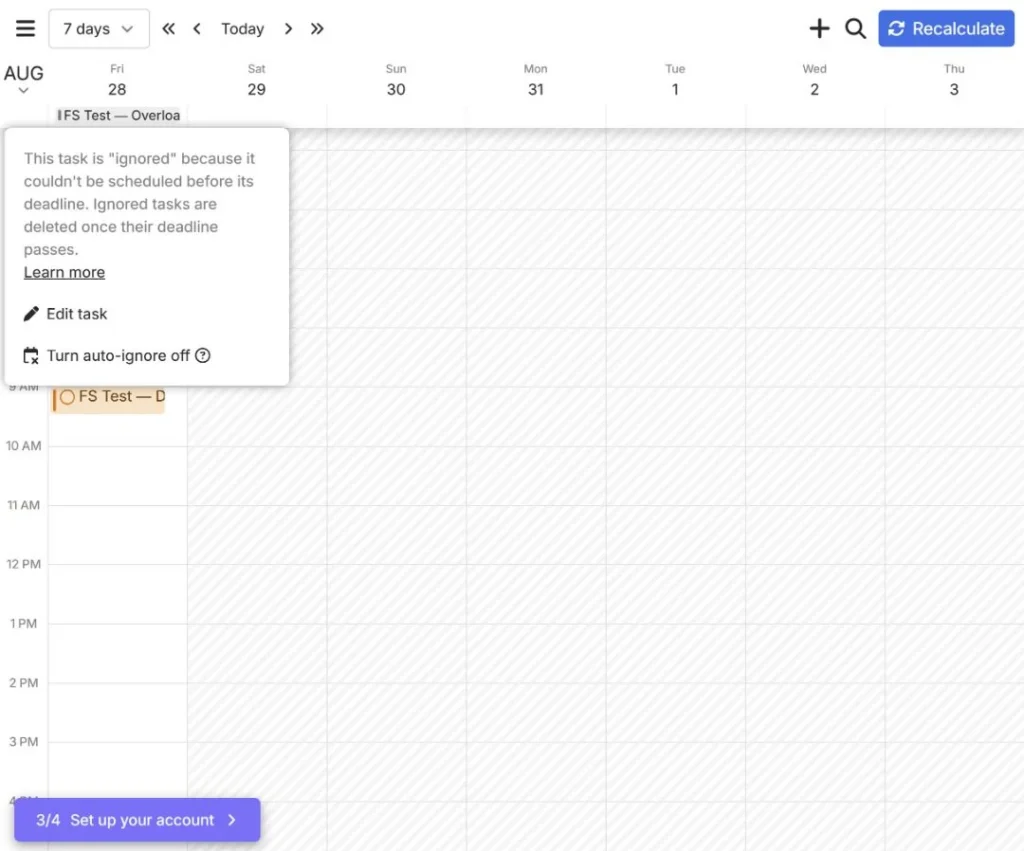
When we enabled Auto-ignore, the red warning disappeared and FlowSavvy said no auto-scheduled tasks were missing deadlines. On the deadline date, the task appeared under 1 ignored instead of receiving time blocks.
Opening that status confirmed that the task still existed and had not been completed. The app explained that ignored tasks are deleted after their deadlines. We turned Auto-ignore off before the deadline; the ignored state disappeared and the infeasible-task warning returned.
Auto-ignore is therefore not a snooze. Use it only when intentionally allowing work to be omitted and eventually removed. If the task still matters, change its duration, make it Splittable, expand availability, or move the deadline.
Is FlowSavvy free?
Yes. When rechecked on August 15, 2026, FlowSavvy Basic was free and included unlimited auto-reschedules, scheduling up to two weeks out, one scheduling-hours profile, three repeating auto-scheduled tasks, five lists, and calendar connections.
Our first repeating weekday task triggered a clear 1 out of 3 Free usage message. The Scheduling Hours screen also marked additional work, morning, evening, and custom profiles as Pro.
FlowSavvy Pro was listed at $14 per month or $10 per month billed annually. It extends scheduling to eight weeks and adds unlimited scheduling-hours profiles, repeating auto-scheduled tasks and lists, priority levels, dependencies, and outward task sync. A seven-day Pro trial was advertised.
The Free plan is sufficient to test the core scheduler. Upgrade when a specific boundary blocks your workflow—not because paid access guarantees better estimates or judgment.
Pricing and plan limits can change. Verify the current FlowSavvy pricing page before purchasing.
For the full cost calculation, Free-versus-Pro limits, trial terms, and upgrade triggers, see our FlowSavvy pricing guide.
What we learned from testing FlowSavvy Pro
Pro did not replace the core scheduler we tested on Free. It added ways to express more intent and removed limits that become restrictive in a larger workflow.
- Priority affected ordering. With aligned one-hour tasks and the same deadline, Do ASAP and High work appeared before Normal and Low work. Calendar conflicts still controlled the exact placement.
- Dependencies enforced sequence. FlowSavvy placed our A → B → C chain consecutively in the required order.
- Scheduling profiles separated availability. Tasks assigned to work and personal profiles landed in different windows under the account’s profile configuration.
- The longer horizon worked after configuration. The upgraded account initially retained its two-week cutoff. After we changed it to eight weeks, a task due October 2 was scheduled on September 28 at 9:30am.
- Higher limits were operational. A fourth repeating auto-scheduled task and a sixth list were created without the Free-plan boundary.
- Outward task sync reached Google Calendar. The inspected tasks appeared on matching dates and times, with no duplicates visible in that week. Exact propagation time was not measured.
These results make Pro easier to justify for users who can name the constraint they are paying to remove. They do not show that Pro can fix unrealistic duration estimates, insufficient availability, or an impossible non-splittable task.
Calendar sync and integration boundaries
FlowSavvy officially documents Google, Outlook, iCloud, and Todoist integrations. Editable Google, Outlook, and iCloud calendars support two-way event sync; read-only calendars sync into FlowSavvy in one direction. Syncing FlowSavvy tasks outward to external calendars is a Pro feature.
There are important boundaries:
- Auto-scheduled tasks should be edited inside FlowSavvy; external edits can be overwritten.
- FlowSavvy does not currently pull tasks from Google Tasks, iCloud Reminders, or Microsoft To Do.
- The built-in FlowSavvy Calendar cannot itself be synced outward.
- On-premises Exchange and local-only calendar syncing are not supported.
In our focused Pro check, FlowSavvy tasks appeared in Google Calendar at the same dates and times shown in FlowSavvy, with no duplicates visible in the inspected week. A synced event warned that Google Calendar edits would be overwritten when the task was next edited or moved in FlowSavvy, so FlowSavvy should remain the editing source of truth. We did not measure exact sync delay or recovery behavior. See FlowSavvy’s current calendar sync guide before connecting a production calendar.
Privacy and security boundaries
FlowSavvy’s privacy policy says it stores account, task, event, and settings data while the account is active and exchanges the data needed for enabled integrations. It says users can disconnect calendars and delete their accounts.
The pricing page says data is encrypted in transit and at rest, access is controlled, customer information is not sold, and it is not used to train AI models. These are vendor statements, not an independent security audit or proof of a specific certification.
Start with a dedicated non-sensitive calendar. Review permissions, connected services, task titles, notes, and your organization’s policies before using FlowSavvy for confidential work. Read the current FlowSavvy privacy policy for the vendor’s full wording.
FlowSavvy pros and cons
Pros
- Rebuilds flexible work around fixed calendar conflicts.
- Makes Lock and Postpone intent explicit.
- Splits eligible work while preserving requested duration.
- Keeps progress and completion records visible.
- Exposes infeasible workload instead of hiding it.
- The Free plan is sufficient for a meaningful scheduling test.
- Pro priorities, dependencies, profiles, longer-range placement, and Google Calendar task delivery worked in our focused test.
Cons
- Poor availability or duration inputs can produce a poor-looking schedule.
- Free includes only one scheduling-hours profile and three repeating auto-scheduled tasks.
- Auto-ignore can ultimately delete ignored work after its deadline.
- Upgrading may retain the former two-week cutoff until the user changes it manually.
- Exact Google Calendar propagation time was not measured, and external edits can be overwritten.
- This is not a collaborative project-management replacement.
Who should use FlowSavvy?
FlowSavvy is a good candidate for:
- Freelancers balancing deliverables around calls.
- Creators scheduling research, drafting, editing, and publishing work.
- Students planning assignments and recurring study sessions.
- Solo professionals whose calendars show meetings but not focus work.
- Users who want automatic time blocking without adopting a large project suite.
Skip it or test alternatives when you need:
- Team boards, resource management, or complex collaboration.
- Several availability profiles without paying for Pro.
- Native Microsoft To Do, Google Tasks, or iCloud Reminders import.
- On-premises Exchange or local-only sync.
- Software that can infer correct estimates and priorities without careful inputs.
Final verdict: Is FlowSavvy worth it?
FlowSavvy is worth trying. Its Free plan demonstrated the essential scheduling behavior: it placed flexible work, rebuilt the plan around a conflict, preserved manual constraints, split a project around a meeting, and surfaced impossible workload clearly.
Our focused Pro test strengthened that verdict without making Pro the default recommendation. Priority and dependencies changed task ordering, separate profiles constrained different kinds of work, the eight-week horizon placed a farther-out task, and outward task sync reached Google Calendar. Those capabilities matter when they remove a real Free-plan limit; they do not make an impossible workload feasible.
Its strongest quality is not that it produces a perfect schedule. It is that the relationship between inputs and outcomes is visible enough to correct. Scheduling hours, duration, Splittable, Lock, Postpone, and Auto-ignore all have materially different effects.
Start with one representative week and non-sensitive data. Configure availability before adding a full workload, then test one conflict and one deliberately difficult deadline. Upgrade only when the Free plan’s profile, recurring-task, horizon, priority, dependency, or sync limits become a real constraint.
Frequently asked questions
Is FlowSavvy really free?
Yes. Basic was free when checked on August 15, 2026. It included the core scheduler, a two-week planning range, one scheduling-hours profile, three repeating auto-scheduled tasks, five lists, and calendar connections.
Does FlowSavvy automatically move tasks?
Yes, for auto-scheduled tasks. In our test, adding a fixed conflict moved flexible work automatically. Fixed events and manually locked tasks remained fixed.
What is the difference between Lock and Postpone?
Lock preserves an exact manual placement. Postpone sets an earliest acceptable time while allowing FlowSavvy to choose a later valid slot.
Can FlowSavvy split long tasks?
Yes, when Splittable is enabled. Our three-hour task was divided into 30-minute and 150-minute segments around a one-hour event while preserving its total duration.
What does Auto-ignore do?
If an eligible task cannot be scheduled before its deadline, Auto-ignore removes it from the missed-deadline warning and lists it as ignored on that date. FlowSavvy’s interface says ignored tasks are deleted after their deadlines.
Is FlowSavvy better than Motion or Reclaim?
This review does not establish that. We did not run a symmetric competitor benchmark. FlowSavvy is worth considering when you want a focused personal auto-scheduler, but compare the same representative week before choosing between products.