

Hands-on scheduler comparison
FlowSavvy is the better fit if you mainly want a lower-cost app to place flexible tasks around your existing calendar. Motion is the better fit if you want auto-scheduling inside a broader workspace that also handles projects, documents, AI assistance, meetings, and team coordination.
We tested FlowSavvy and Motion with the same synthetic workweek rather than comparing feature pages. Both products scheduled flexible tasks, reacted to calendar conflicts, split work, handled priorities and dependencies, and published tasks to Google Calendar. The more meaningful difference was scope: FlowSavvy stayed focused on planning time, while Motion asked the scheduler to serve a much wider work system.
Choose FlowSavvy for focused personal auto-scheduling and a permanent Free starting point. Choose Motion when its projects, AI, documents, meetings, and team controls can replace other tools you already pay for. For a solo user who only wants time-blocking, Motion is difficult to justify on scheduling alone at the price we encountered.
FlowSavvy vs Motion at a glance
| Category | FlowSavvy | Motion |
|---|---|---|
| Best for | Solo users who want focused auto-scheduling | Professionals and teams wanting a broader work platform |
| Product scope | Calendar, tasks, scheduling controls | Calendar, tasks, projects, docs, AI, meetings, dashboards, team tools |
| Free access | Permanent Free plan | Seven-day Pro AI trial in our tested signup path |
| Entry paid price observed | $14 monthly or $10/month billed yearly | Individuals Pro AI: $49 monthly or $29/month billed yearly ($348/year) |
| Conflict rescheduling | Yes, observed | Yes, observed |
| Task splitting | Yes, observed | Yes, observed |
| Manual placement | Lock or Postpone intent | Drag became fixed time in our test |
| Overload behavior observed | Left impossible work unscheduled and warned | Scheduled work past deadline and warned |
| Dependencies | Pro | Available through a Motion project in our test |
| Multiple scheduling profiles | Pro | Supported through separate schedules |
| Google Calendar task publishing | Pro, observed | Observed |
| Main tradeoff | Less breadth | More setup and substantially higher tested cost |
How we tested FlowSavvy and Motion
We used a controlled Monday-to-Friday workload with the same working hours, lunch blocks, fixed meetings, flexible tasks, deadlines, recurring work, and calendar changes.
The scenarios included:
- Initial placement of five flexible tasks.
- Three recurring tasks.
- A new urgent meeting.
- A moved fixed event.
- Splittable work.
- An overloaded schedule.
- Priorities and dependencies.
- Work and personal scheduling windows.
- Manual task movement.
- Outward Google Calendar publishing.
This method can show what happened under matching constraints. It cannot prove how either product behaves for every account, workload, device, or future software version. We also did not test Motion’s authentic incomplete-task recovery because the controlled workload fell after the trial decision deadline.
Auto-scheduling: both worked, but they communicate constraints differently
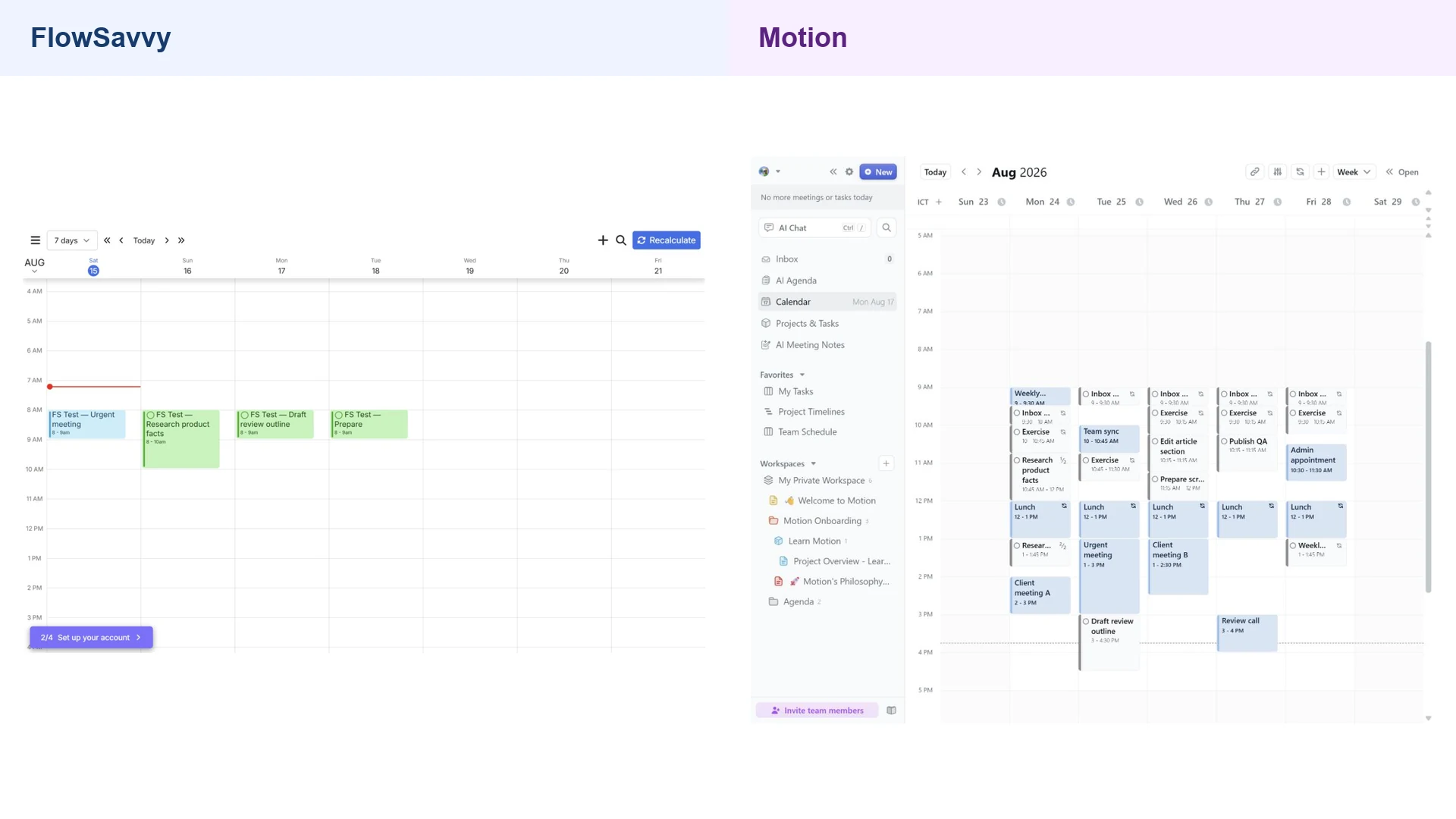
Both apps turned task duration, availability, and deadlines into calendar blocks. Both also rebuilt the schedule when a fixed conflict appeared.
In FlowSavvy, adding a busy event relocated flexible work without requiring a separate recalculation click. After we corrected its availability profile to Monday through Friday, unlocked tasks moved into the weekday window while a previously locked task and fixed event stayed where we had put them.
Motion also moved flexible work after an urgent meeting was added. In the controlled week, a 90-minute draft task moved to a later open block after the conflict. When another fixed meeting moved, Motion split a 45-minute task into 30- and 15-minute segments, matching the task’s configured 15-minute minimum chunk.
FlowSavvy produced an equivalent kind of result in its own split test: a three-hour task became a 30-minute segment and a 150-minute segment around a fixed one-hour event. The total requested duration remained intact.
These observations support a practical conclusion: both products can rebuild a flexible calendar around changing events. They do not support the stronger claim that either scheduler is universally more accurate or intelligent.
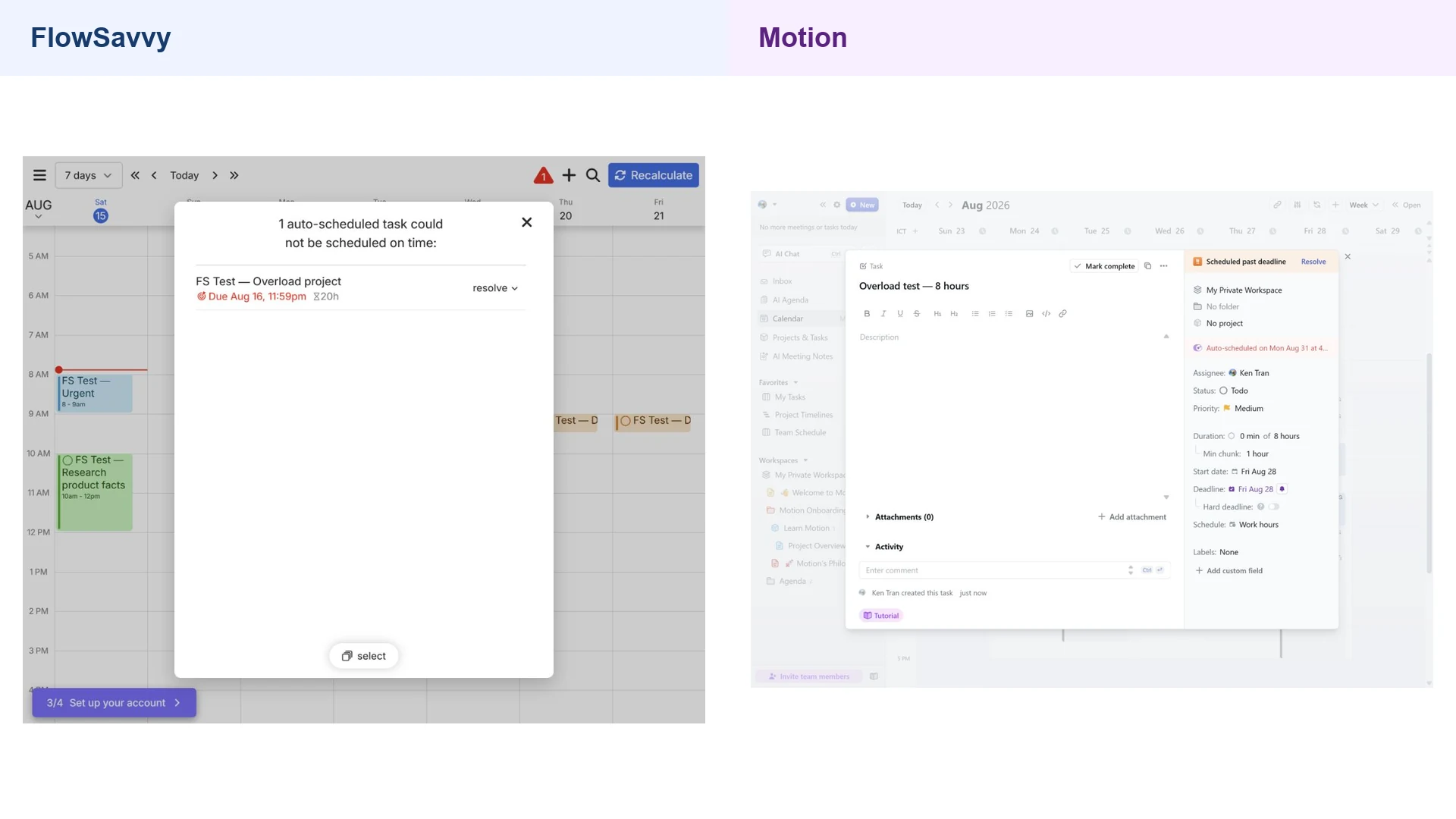
Overload: FlowSavvy protects feasibility; Motion can expose lateness
The clearest behavioral difference appeared when the workload could not fit.
FlowSavvy left a 20-hour non-splittable task unscheduled and displayed a warning. Moving the deadline later still did not solve it because the task required a continuous block longer than the configured daily window. Its Resolve menu offered completion, a deadline change, auto-ignore, or deletion.
Auto-ignore deserves caution. In our test it removed the infeasible task from the missed-deadline warning and listed it as ignored on its deadline without completing it. FlowSavvy’s interface said an ignored task would be deleted after its deadline. We turned auto-ignore off before that point, so we did not independently verify the deletion.
Motion handled the overload scenario differently. An eight-hour task that could not fit before its Friday deadline was split into three segments, with remaining work scheduled after the deadline. Motion showed a red warning and labeled it “Scheduled past deadline.” Its resolution popover offered a projected later deadline and other actions.
Motion also has a hard-deadline control. When we enabled it for a separate eight-hour test, Motion placed work before normal Work hours so the task could finish by Friday. That can be useful when a deadline is genuinely immovable, but it also means the system may protect the deadline by violating preferred working hours.
Neither behavior is always better. FlowSavvy’s unscheduled state makes impossibility explicit. Motion’s late placement shows where the work could go and lets a hard deadline override normal hours. The right approach depends on whether you want the planner to stop at your availability boundary or show the consequences of insisting on the deadline.
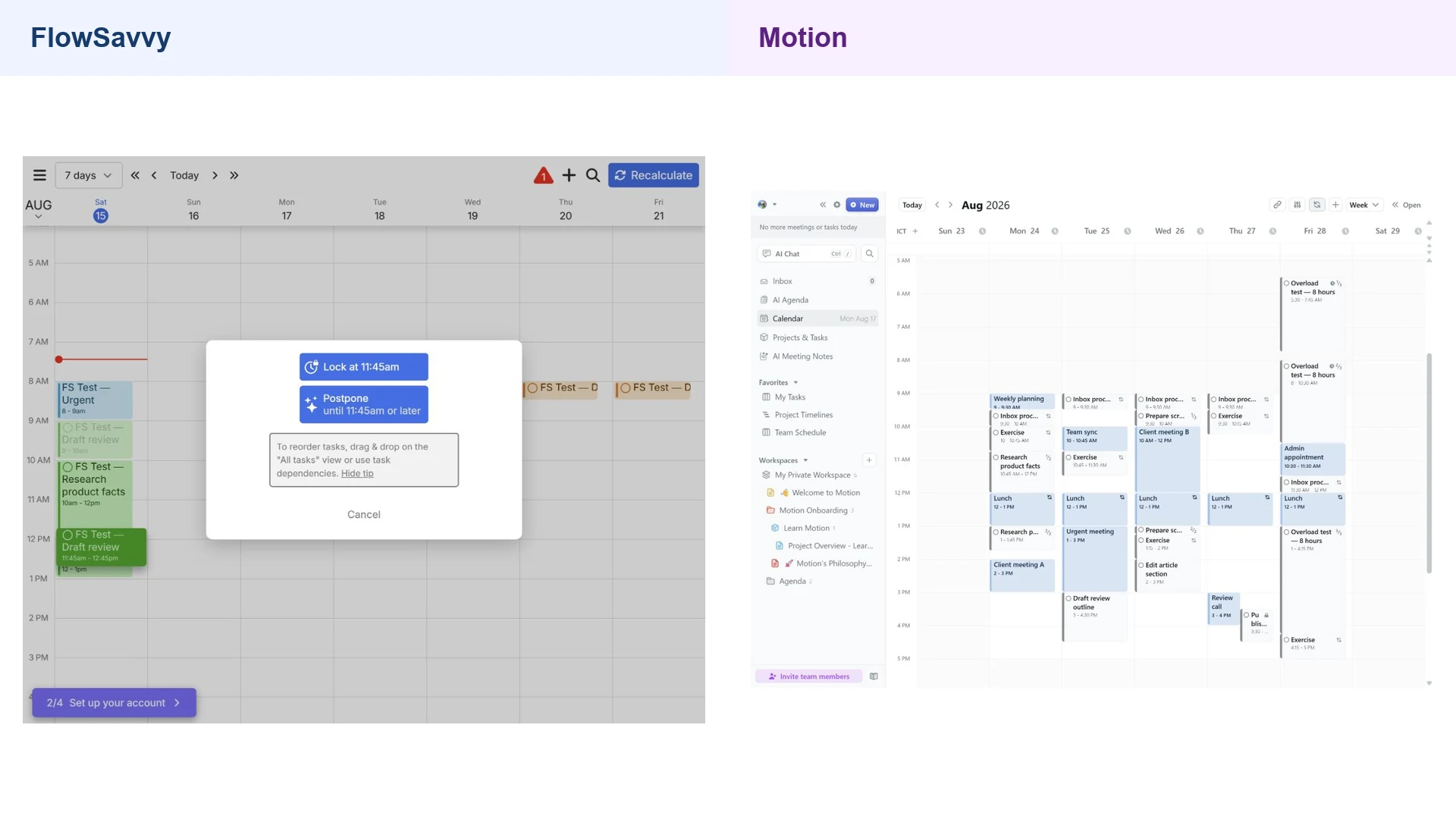
Manual control: FlowSavvy makes the intent more explicit
FlowSavvy gave us two choices after dragging a flexible task:
- Lock at the selected time.
- Postpone until that time or later.
That distinction was useful. Lock preserved an exact placement after recalculation, while Postpone acted as a not-before constraint and allowed FlowSavvy to choose a later valid slot.
In Motion, dragging a task converted it to fixed time in our test. The placement survived a refresh and could overlap an existing calendar event after explicit user action.
Motion’s behavior gives direct control, but FlowSavvy communicated the scheduling intent more clearly during the drag itself. If you frequently rearrange tasks manually but still want them to remain flexible, Lock versus Postpone is a meaningful advantage.
Priorities, dependencies, and separate schedules
Both products handled the advanced controls we tested.
In aligned priority scenarios, higher-priority work appeared ahead of lower-priority work. In Motion’s loaded conflict, the High-priority task stayed before its deadline while the Low-priority task was pushed late. This was one result under a controlled workload, not evidence of a universal ranking formula.
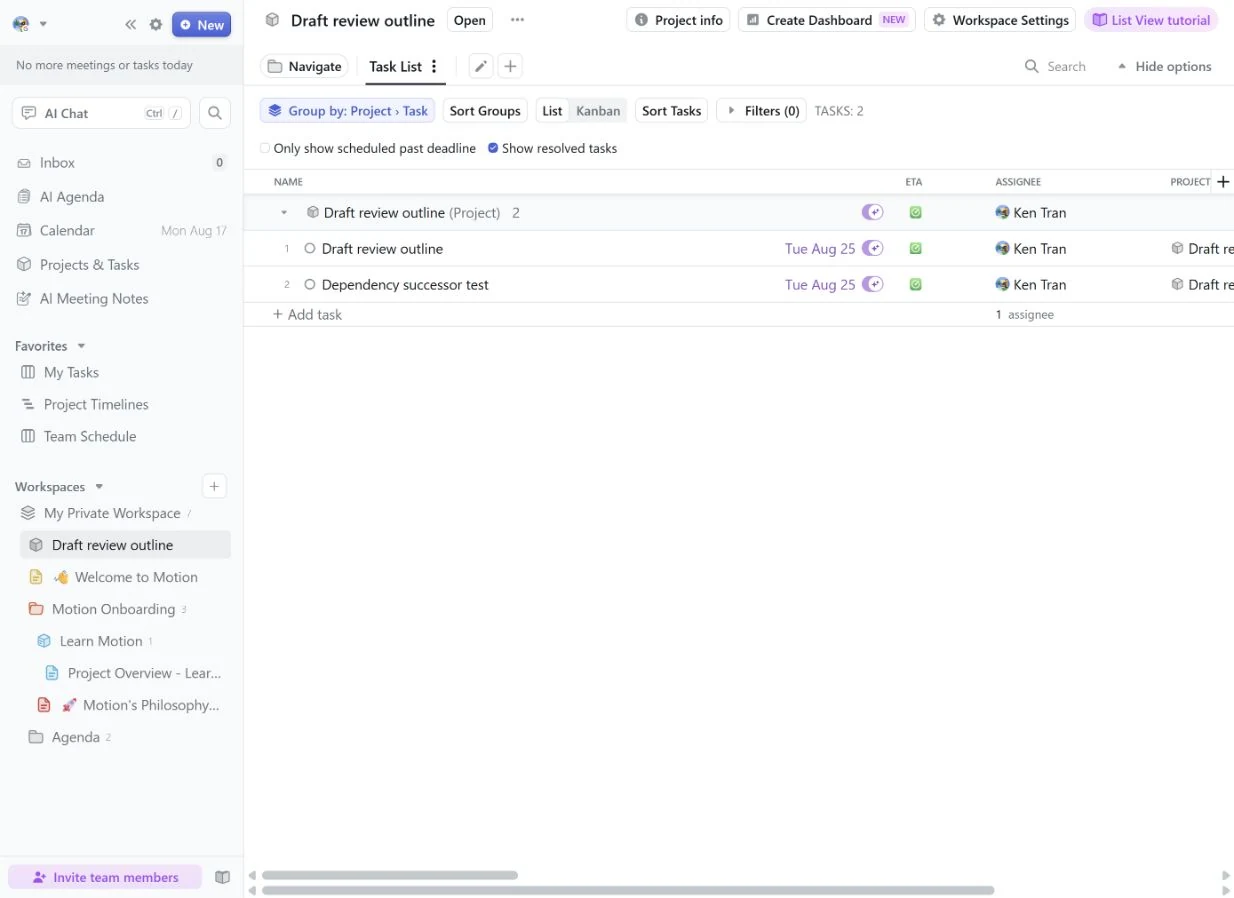
Dependencies also enforced the intended order in both apps. FlowSavvy’s Pro dependency chain placed A before B before C. In Motion, dependencies were not visible in the standalone task editor; they became available after we created a project. That boundary matters for solo users who want simple task sequencing without adopting a project structure.
Both apps also separated work and personal time. FlowSavvy Pro placed tasks into different configured scheduling-hours profiles. Motion moved a recurring Exercise task to its Personal schedule at 6:00 p.m.
FlowSavvy reserves priorities, dependencies, unlimited profiles, and its longer eight-week horizon for Pro. Motion combines scheduling controls with a much broader project model.
Motion offers far more than a calendar planner
This is where a simple feature count becomes misleading.
Motion exposed projects, task lists, Kanban views, blockers, dashboards, documents, AI Chat, AI Agenda, meetings, and team-oriented fields. Its project task view included assignees, stages, labels, status, guests, scheduled dates, blockers, and blocking relationships.
We also tested Motion’s AI Chat task creation. It required confirmation, but the final task used an August 20 start date even though the confirmation preview said August 21. The task’s duration, priority, deadline, and scheduling state were otherwise retained. This does not make the entire AI assistant unreliable, but it is a concrete reminder to review generated fields after confirmation.
FlowSavvy’s narrower scope is not automatically a weakness. If tasks and projects already live in another system, a focused scheduler can be easier to adopt because it does not ask you to migrate the rest of your work. Conversely, Motion makes more sense when consolidating projects, scheduling, documents, and meetings is part of the goal.
For a deeper evaluation of the focused product itself, read our hands-on FlowSavvy review.
Google Calendar sync
Both products published task blocks to Google Calendar in our tests. We did not see duplicate copies in the inspected weeks.
FlowSavvy’s synced task appeared at the matching date and time. Its event detail warned that external edits to an auto-scheduled task could be overwritten by FlowSavvy.
Motion published tasks as Free calendar events under the setting we selected. When outward publishing was disabled, the gray Motion task blocks disappeared while the original calendar events remained. FlowSavvy showed the same cleanup pattern when its outward sync was switched off.
This proves the tested publishing and cleanup workflows, not an exact sync speed or a guarantee that duplicates can never occur.
FlowSavvy vs Motion pricing
FlowSavvy has the simpler and less expensive starting point. Its official pricing page listed:
- Basic: free.
- Pro: $14 per month when billed monthly.
- Pro: $10 per month when billed yearly.
- Seven-day Pro trial.
The Free plan includes a two-week scheduling horizon, one scheduling-hours profile, three repeating auto-scheduled tasks, and five task lists. Pro extends the horizon to eight weeks and adds priorities, dependencies, unlimited scheduling-hours profiles, outward task sync, and higher limits.
Our FlowSavvy pricing guide explains those upgrade boundaries in more detail.
Motion separates pricing for Individuals and Teams. For Individuals—the solo-professional path used in our test—Pro AI was $49 per month when billed monthly or $29 per month when billed annually. The annual checkout and signed-in Billing page confirmed a $348 yearly total after the seven-day trial, with the next payment scheduled for August 23, 2026.
| Product and plan | Monthly billing | Annual billing | Free access |
|---|---|---|---|
| FlowSavvy Basic | Free | Free | Permanent Free plan |
| FlowSavvy Pro | $14/month | $10/month ($120/year) | Seven-day Pro trial |
| Motion Individuals Pro AI | $49/month | $29/month ($348/year) | Seven-day trial |
| Motion Teams Pro AI | $29/seat/month | $19/seat/month ($228/seat/year) | Verify at signup |
Prices checked August 17, 2026. Motion’s Teams prices are shown only to prevent confusion with the Individuals plan used in our test. Verify current pricing and checkout totals before purchasing.
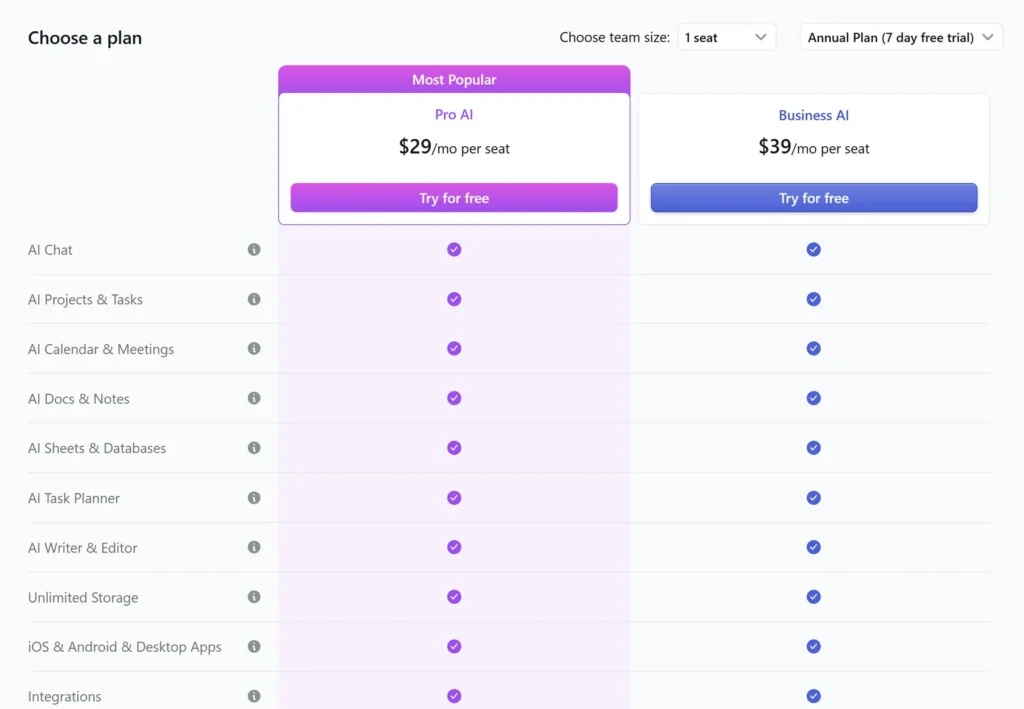
The Teams selector is a different offer: Pro AI was $29 per seat per month when billed monthly or $19 per seat per month when billed annually. That lower annual seat price does not describe the Individuals plan we tested. The full plan economics belong in a dedicated Motion pricing analysis; for this comparison, the relevant solo-user commitment is $348 per year, which remains substantially more expensive than FlowSavvy Pro.
Who should choose FlowSavvy?
Choose FlowSavvy if:
- Your main goal is to time-block flexible personal work.
- You already manage projects somewhere else.
- You want to test the core scheduler on a permanent Free plan.
- You prefer explicit Lock versus Postpone control.
- You want a lower-cost paid upgrade for priorities, dependencies, profiles, and a longer horizon.
FlowSavvy is especially compelling for freelancers, students, creators, and solo professionals whose calendar is the center of the workflow.
If you need help configuring availability and flexible tasks, follow our step-by-step FlowSavvy guide.
Who should choose Motion?
Choose Motion if:
- You want projects, tasks, documents, meetings, and AI in one workspace.
- You need richer project fields, blockers, dashboards, or team coordination.
- You want a hard-deadline control that can schedule outside preferred hours.
- Consolidating other paid tools can justify the higher cost.
Motion is easier to justify as a platform decision than as a calendar-only purchase.
Final verdict: FlowSavvy or Motion?
For most solo users comparing these products primarily as AI calendar planners, FlowSavvy is our recommendation. It performed the core jobs we needed—scheduling tasks, rebuilding around conflicts, splitting work, exposing overload, and publishing to Google Calendar—without requiring the cost or breadth of a full work platform.
Motion is the better choice when that breadth is the reason you are buying. Its projects, documents, AI surfaces, meetings, and team controls can make the higher price rational for a user or organization replacing several tools at once.
So the decision is less “Which AI is smarter?” and more “How much of your work system should the scheduler own?” Choose FlowSavvy when the answer is your calendar. Choose Motion when the answer includes the surrounding projects and collaboration system.
Frequently asked questions
Is FlowSavvy better than Motion?
FlowSavvy is better for a solo user who mainly wants focused, lower-cost auto-scheduling. Motion is better suited to users who need projects, documents, AI, meetings, and team controls in the same platform. Neither is a universal winner.
Is FlowSavvy cheaper than Motion?
Yes, based on the prices checked on August 17, 2026. FlowSavvy offered a permanent Free plan and Pro at $14 monthly or $10 per month billed yearly. Motion Individuals Pro AI was $49 monthly or $29 per month billed yearly, with the tested annual checkout totaling $348. Motion’s lower $19 annual headline belongs to the separate Teams offer.
Do FlowSavvy and Motion both reschedule tasks automatically?
Yes. Both moved flexible work after fixed calendar conflicts in our controlled tests. The exact result depends on availability, duration, deadlines, priorities, and product settings.
Which app is better for project management?
Motion. It includes a much broader project system with multiple views, assignees, stages, blockers, dashboards, documents, and team-oriented controls. FlowSavvy is primarily a scheduling product.
Which app gives more manual scheduling control?
Both allow manual intervention. FlowSavvy explicitly asked whether a dragged task should be locked at an exact time or postponed until that time or later. Motion converted the tested drag into fixed time and preserved it after refresh.
Can both apps sync tasks to Google Calendar?
Yes, in the paid workflows we tested. Both published task blocks to Google Calendar, and both removed their published representations after outward sync was disabled. We did not measure exact propagation speed or test every calendar configuration.