

Table of Contents
If you want to learn how to use FlowSavvy effectively, configure your real scheduling hours first, then create flexible tasks with realistic durations and deadlines. Add fixed events for meetings and other commitments, and inspect how FlowSavvy rebuilds the schedule. The app can place the work, but it cannot correct an impossible workload or inaccurate inputs for you.
This guide follows the Free-plan workflow we tested with a synthetic two-week calendar. You will create a usable schedule, introduce a conflict, control a moved task, split a project around a meeting, and resolve work that cannot meet its deadline.
What you will create
By the end of the tutorial, you will have:
- a weekly availability profile;
- at least one flexible auto-scheduled task;
- a fixed event that blocks task time;
- a recalculated schedule;
- an example of Lock or Postpone;
- a repeating or Splittable task;
- a process for investigating missed deadlines.
Use a new account or non-sensitive test calendar for the first run. Avoid client names, confidential project notes, or a production calendar until you understand the scheduling behavior and any connected-calendar permissions.
What you need before starting
You need a FlowSavvy account and a representative week containing two kinds of work:
- Fixed events: meetings, appointments, classes, or other commitments that should not move.
- Flexible tasks: writing, research, study, administration, or project work that may move as long as it finishes before its deadline.
Prepare three small tasks with known durations and deadlines. Include one meeting that can overlap a task during the test. This is more useful than importing an entire workload before you know whether the settings match your routine.
Our test used FlowSavvy Free. When checked on August 15, 2026, Free included unlimited auto-reschedules, scheduling up to two weeks ahead, one scheduling-hours profile, three repeating auto-scheduled tasks, and five lists. None of the core steps below requires Pro.
Step 1: Set realistic scheduling hours
Do this before judging the first schedule. Open Settings → Scheduling Hours, select the available profile, and enter the hours when flexible work can actually happen.
For our workweek test, we used Monday through Friday, 9:00 a.m. to 5:00 p.m. Before that change, the default personal-hours profile allowed work at 8:00 a.m. on Saturday and Sunday. FlowSavvy had followed the configured availability; the configuration simply did not match our intended workweek.
The Free plan currently provides one scheduling-hours profile. If you need separate work, personal, morning, and evening profiles, that is a Pro boundary rather than a setup error.
FlowSavvy’s official Scheduling Hours guide also documents date overrides and using busy events to block unavailable days.
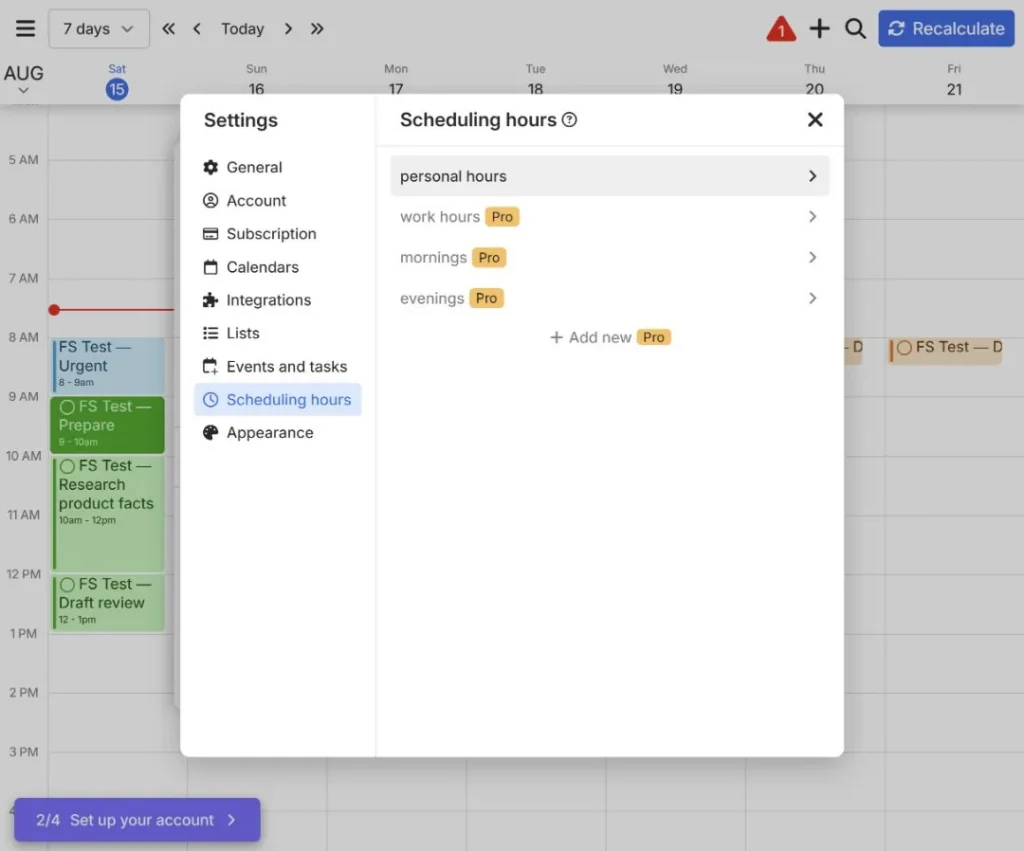
Step 2: Create your first auto-scheduled task
Select New task or event, keep Task selected, and expand More options. For a simple first task, set:
- a clear title;
- Auto-schedule on;
- a realistic total duration;
- the appropriate scheduling-hours profile;
- a due date and time;
- the earliest time the task can begin, if it cannot start immediately.
The due date is the time by which the task should be complete. It is not a request to begin at that time. FlowSavvy uses the available window before the deadline to find a placement.
Leave advanced controls alone during the first test unless the task genuinely needs them. Priority and dependencies are Pro features, while Repeat and Splittable change the scheduling problem in ways we will cover later.
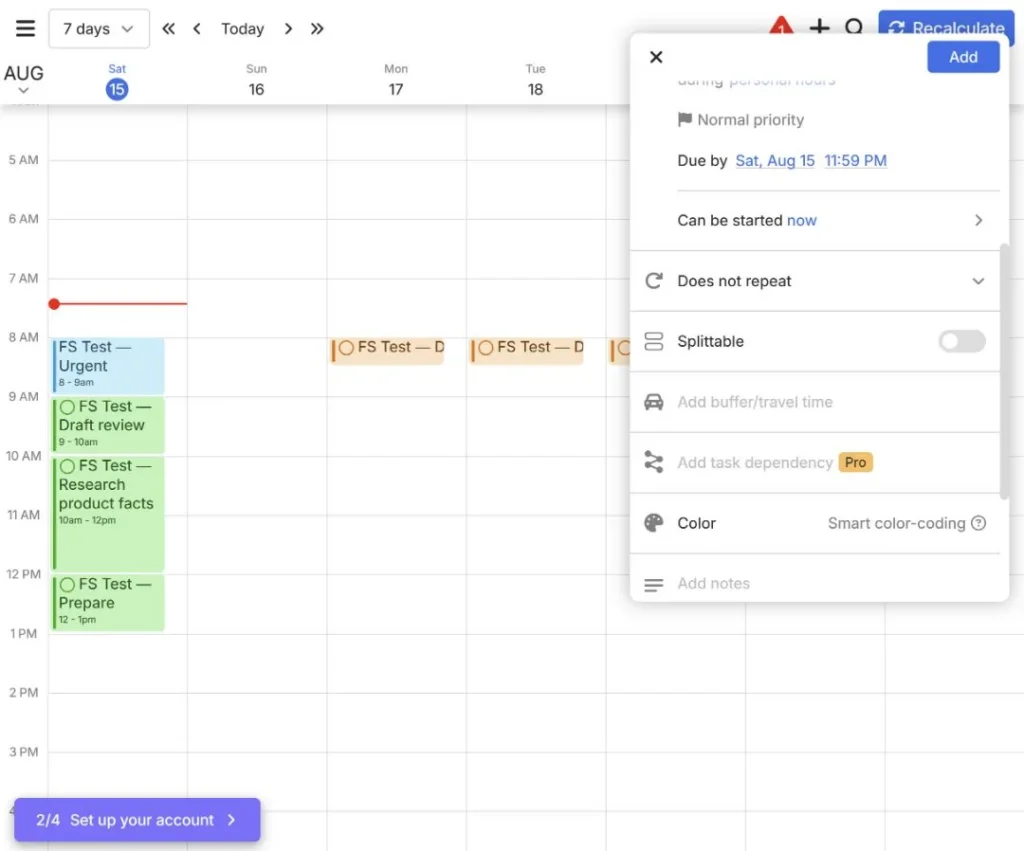
For a useful first run, create two or three tasks of different lengths. We used research, drafting, and screenshot tasks rather than a single empty-calendar example.
Step 3: Inspect the initial schedule
Open the seven-day Schedule view and find the task blocks. Check four things:
- Is every task inside the intended scheduling hours?
- Does each block match the requested duration?
- Does the work finish before its deadline?
- Did FlowSavvy place anything on a day you intended to keep free?
If the placement looks wrong, inspect the inputs before moving blocks manually. Check the scheduling-hours profile, duration, due date, earliest start, fixed events, and whether the task is Splittable.
Do not treat the first generated schedule as a final answer. It is a diagnostic view of the constraints you supplied.
Step 4: Add a fixed event and check automatic rescheduling
Create an Event for a meeting or appointment and place it over one of the flexible task blocks. Events are fixed calendar commitments; auto-scheduled tasks are the work FlowSavvy may move around them.
In our test, adding FS Test — Urgent meeting over the first hour of a two-hour research task moved the research block and the flexible tasks behind it. We did not need to select Recalculate separately for that change.
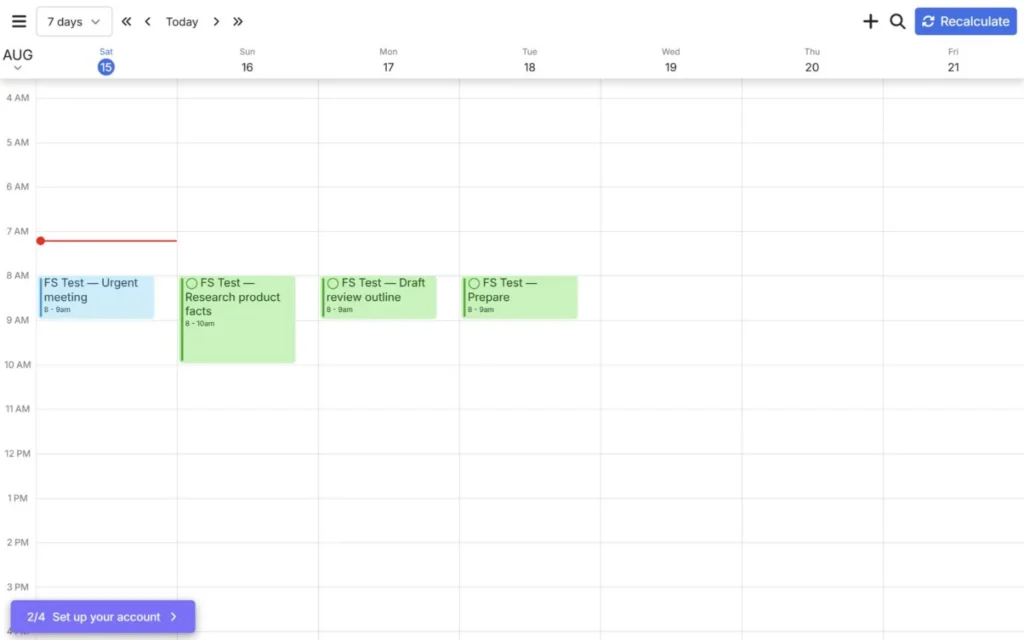
Check the new sequence rather than assuming that movement made it practical. A task may still miss its deadline if there is not enough valid time remaining.
Step 5: Choose Lock or Postpone when moving a task
When we dragged an auto-scheduled task, FlowSavvy asked whether to Lock it at that time or Postpone it until that time or later. These choices express different intent:
- Lock: Keep the task at the exact selected placement through recalculation.
- Postpone: Do not start before the selected time, but allow FlowSavvy to place the task later.
We locked a research task at 10:00 a.m. and selected Recalculate. It remained at 10:00–12:00 while surrounding flexible work moved. In a separate test, postponing a task until 11:45 a.m. or later resulted in a noon placement rather than an exact 11:45 start.
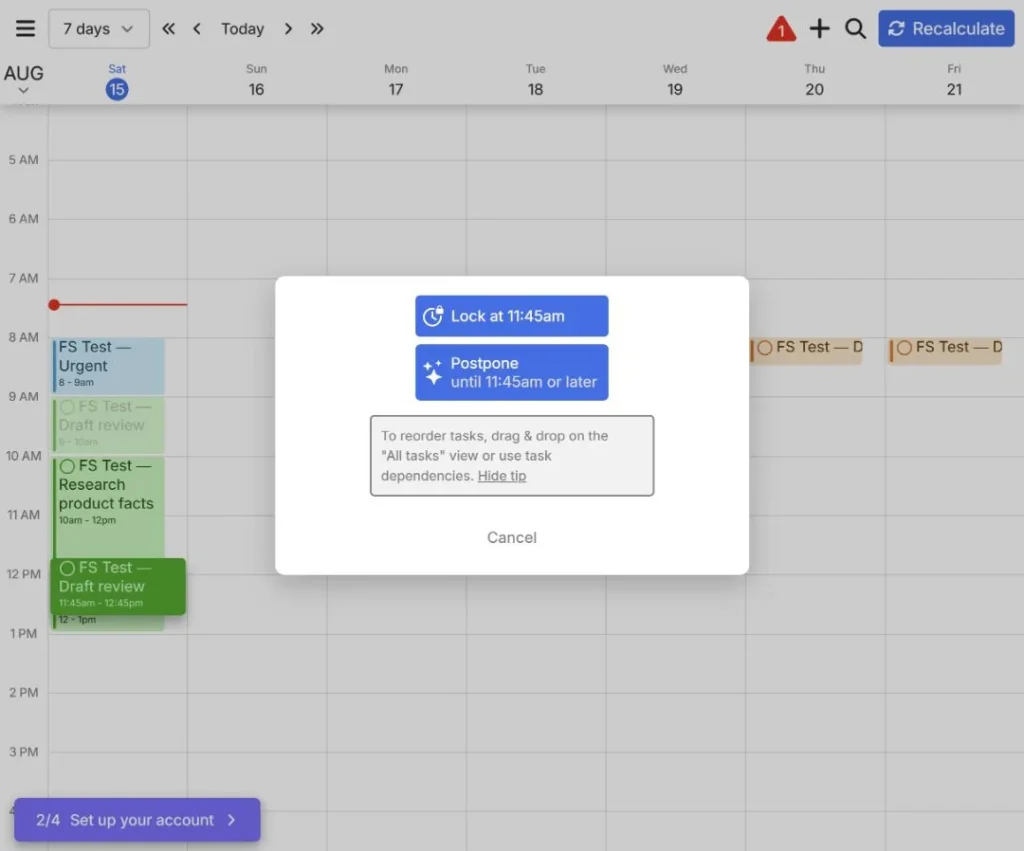
Avoid locking many tasks merely because the first schedule looks unfamiliar. Too many fixed constraints reduce the space available for automatic rescheduling.
Step 6: Record progress or complete a task
Open a task when part of the work is finished and record the completed duration. In our test, recording one hour of progress on a two-hour task left a completed block visible and moved the remaining hour into another valid slot.
When a task is fully finished, mark it complete. Our completed task appeared as a gray strikethrough record. Clearing the completion state and selecting Recalculate returned it to the flexible schedule.
For a repeating task, completing one occurrence left later weekday occurrences active. This is useful when one session is finished but the routine should continue.
The output check is simple: confirm that the remaining duration—not the original total duration—still appears in the future schedule.
Step 7: Use repeating and Splittable tasks carefully
Repeating tasks
Open More options → Repeat and choose the recurrence pattern. For an auto-scheduled repeating task, the due date repeats. Make sure each occurrence has a realistic window in which it may start.
Our first weekday repeating task triggered a 1 out of 3 Free usage message. The current Free allowance is three repeating auto-scheduled tasks; ordinary repeating events and non-auto-scheduled items should not be confused with this particular limit.
Splittable tasks
Turn Splittable on when a project may be completed in several blocks, then choose a minimum block duration that still permits useful work.
Our three-hour project initially remained in one 09:30–12:30 block because continuous time was available. After we inserted a fixed event from 10:00–11:00, FlowSavvy divided the work into 09:30–10:00 and 11:00–13:30. The two segments still totaled three hours.
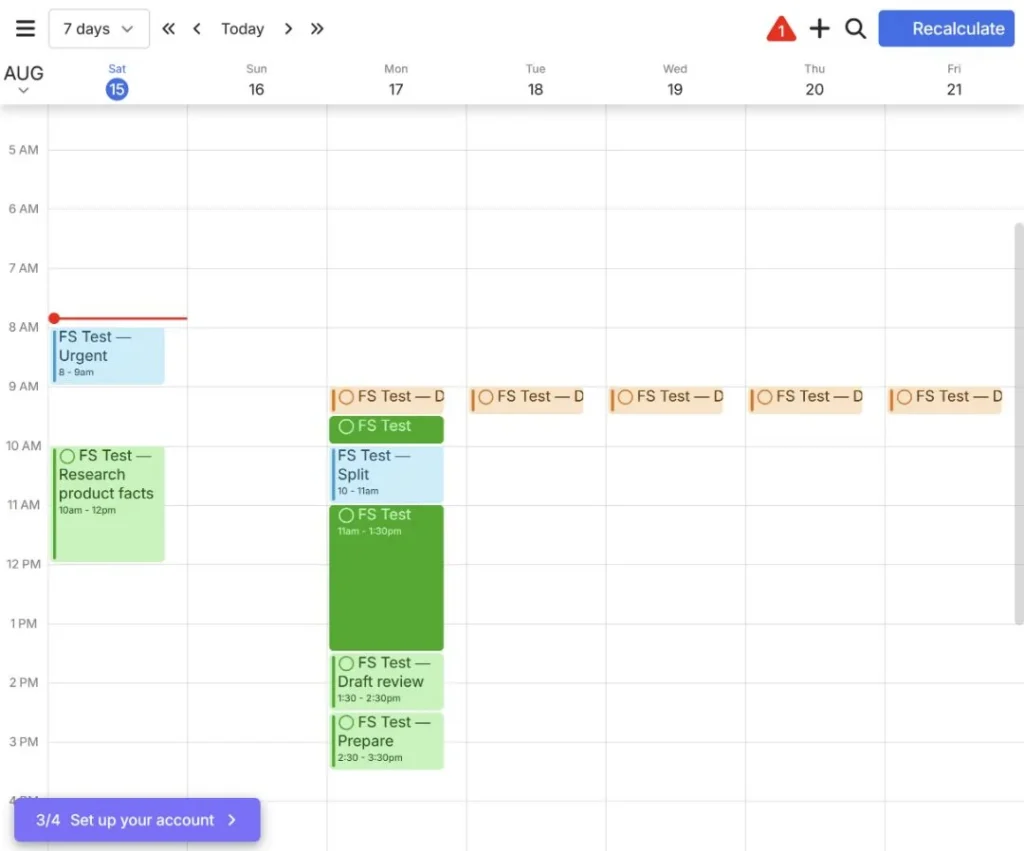
Keep Splittable off when a task truly requires one uninterrupted session. If it is on, avoid a minimum block so small that the fragments become impractical.
Step 8: Resolve overload and missed deadlines
We created a deliberately impossible 20-hour non-splittable task due the following day. FlowSavvy left it unscheduled and displayed a red warning instead of silently pretending that the deadline was achievable.
Open the warning and inspect the affected task. The tested Resolve menu offered:
- Complete;
- Change due date;
- Turn auto-ignore on;
- Delete.
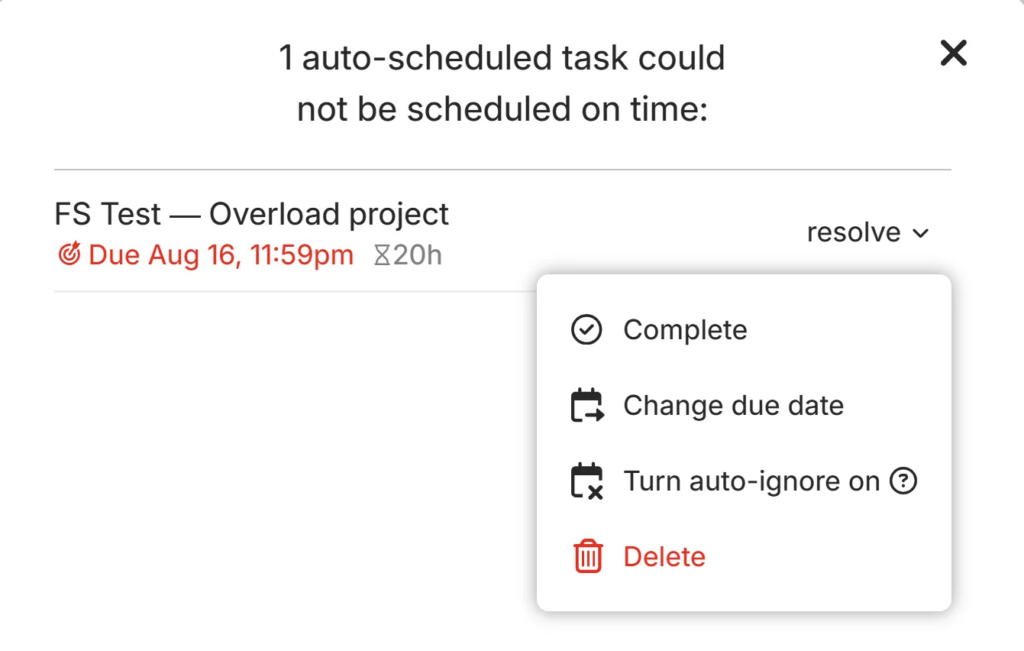
Try to identify the cause before choosing an action:
- Is the duration accurate?
- Does the task need one continuous block?
- Should Splittable be enabled?
- Are the scheduling hours too narrow?
- Is the earliest-start constraint too late?
- Is the deadline genuinely movable?
- Are fixed or locked items consuming the valid window?
Changing our task’s deadline from August 16 to August 28 did not solve it. With an eight-hour daily window and Splittable off, a later date still did not create one continuous 20-hour block. That causal explanation is an inference from the tested configuration, not a claim about every unscheduled task.
Use Auto-ignore only for work that may be omitted
When we turned Auto-ignore on, the warning cleared and the task appeared under an ignored header on its deadline date. It had not been completed. We could turn Auto-ignore off before the deadline, after which the warning returned.
FlowSavvy’s interface and official missed-deadline guide say ignored tasks are deleted after their deadlines. We did not leave our test task past its deadline to independently observe deletion.
Auto-ignore is appropriate for a repeat occurrence that should be skipped rather than allowed to accumulate. It is not a substitute for postponing important work.
Common FlowSavvy setup problems
Tasks appear on weekends or too early
Edit Scheduling Hours. A surprising placement may be valid under the current profile.
A task does not start at its due time
That is expected. The due date is the completion deadline. Use the start constraint or Postpone if work must not begin before a particular time. The official task and event guide documents the current field behavior.
A task will not move
Check whether it is a fixed Event, manually locked, already completed, or constrained by its available time window.
A long project stays unscheduled despite open time
The available gaps may be shorter than its required continuous duration. Enable Splittable only if the work can genuinely be divided, and set a useful minimum block length.
The schedule looks too rigid
Review manual locks, fixed events, narrow scheduling hours, and exact start constraints. Automatic scheduling needs valid flexibility.
How to use FlowSavvy to improve the resulting schedule
Use this review loop after making major changes:
- Confirm fixed events first.
- Scan for red warnings and missed deadlines.
- Check whether every duration is still realistic.
- Verify the correct scheduling-hours profile.
- Inspect locked and postponed tasks.
- Confirm Splittable and minimum-block settings for large work.
- Remove or change only the constraint that is actually wrong.
- Recalculate and compare the new output with the previous one.
FlowSavvy becomes easier to evaluate when you can explain why each important block is where it is. A visually full calendar is not automatically a feasible one.
How much does this workflow cost?
The workflow in this guide can be completed on Free. Current Free boundaries include a two-week scheduling horizon, one scheduling-hours profile, three repeating auto-scheduled tasks, and five lists.
Pro may become relevant when you need an eight-week horizon, several scheduling profiles, unlimited repeating auto-scheduled tasks and lists, priorities, dependencies, or FlowSavvy task sync to an external calendar. This tutorial’s steps were tested on Free. We verified those paid capabilities separately in a focused Pro module, but none is required to complete the workflow taught here.
For current prices, annual-versus-monthly math, trial terms, and tested upgrade triggers, read our FlowSavvy pricing guide.
Is this FlowSavvy workflow worth using?
Yes, if your real problem is placing flexible deadline-driven work around fixed events. Our Free test produced a useful schedule, rebuilt it after a conflict, preserved deliberate manual constraints, split eligible work, and exposed an impossible workload.
The workflow is less useful when your estimates and availability are unreliable, most work must happen at exact times, or you need team project management rather than personal time blocking.
For the full strengths, weaknesses, privacy boundaries, and buying recommendation, read our hands-on FlowSavvy review.
Frequently asked questions
Should I create a task or an event in FlowSavvy?
Use an Event for a fixed commitment that should remain at its scheduled time. Use an auto-scheduled Task for flexible work that FlowSavvy may place and move before its deadline.
What should I configure first in FlowSavvy?
Set Scheduling Hours first. Otherwise, FlowSavvy may correctly place work inside an availability profile that does not match your real routine.
What is the difference between Lock and Postpone?
Lock preserves the exact selected placement. Postpone prevents the task from starting before the selected time while allowing a later valid placement.
Why is my FlowSavvy task not scheduled?
Check its duration, deadline, earliest start, scheduling hours, fixed conflicts, manual locks, and Splittable setting. A task can have visible free time around it without having a valid continuous block that satisfies every constraint.
Does Auto-ignore complete the task?
No. It leaves infeasible work unscheduled and marks it ignored. FlowSavvy says ignored tasks are deleted after their deadlines, so do not use it for work that must be preserved.
Do I need FlowSavvy Pro for this tutorial?
No. The core scheduling, recalculation, progress, repeat, split, and missed-deadline workflow described here was tested on Free. Pro is relevant only when a specific plan boundary blocks your use case.