

Motion makes the most sense when you want automatic time blocking and project management in the same app. If you only need a personal to-do list placed on a calendar, it is probably more tool—and more expense—than you need.
Rather than rely on a demo, I built a synthetic workweek and made Motion deal with fixed meetings, deadlines, recurring work, overload, and changing priorities. I also tested projects and dependencies, separate work and personal schedules, Google Calendar publishing, Docs, AI project generation, search, and a complete Booking Links appointment.
The result was mixed but fairly clear. Motion built a sensible first schedule and handled routine calendar changes well. Dependencies and Booking Links also triggered the right rescheduling behavior. On the other hand, a hard deadline pushed work outside my configured hours, a manual move preserved an overlap, and several AI features needed close checking.
What is Motion?
Motion is an AI work platform built around an auto-scheduled calendar. You enter tasks with a duration, date range, priority, and schedule; Motion places work around meetings and recalculates when availability changes.
The tested Pro AI workspace also included projects, task lists and Kanban views, blockers, AI Chat, a daily AI Agenda, documents, calendar and meeting tools, and wider workspace controls.
That breadth is both the attraction and the tradeoff. Motion can replace several planning surfaces, but it asks for more setup and costs more than a focused calendar scheduler.
How I tested Motion
I used a one-seat Pro AI trial connected to a dedicated Google Calendar. Work hours were Monday through Friday, 9:00 a.m. to 5:00 p.m., with a fixed one-hour lunch each day.
The baseline contained six fixed events and five flexible tasks totaling more than five hours. I added recurring inbox processing, exercise, and a weekly review, then let Motion build the week.
From there, I moved meetings, created new conflicts, added an impossible eight-hour Friday task, and changed task priorities. The second half of the test covered dependencies, project stages, Personal hours, Google Calendar publishing, AI Chat, Docs, AI project generation, Global Search, and a public booking that I later canceled.
This was a controlled product test, not a long-term productivity study. Mobile and desktop apps, team collaboration, authentic missed-task recovery, and AI Meeting Notetaker were outside its scope. I make no claim about Motion’s transcript or meeting-summary quality.
Auto-scheduling produced a workable first week
Motion placed all five baseline tasks inside Work hours, outside fixed meetings and lunch, and before their date-level deadlines. The first research task landed in a continuous two-hour opening, while the remaining work was distributed across Tuesday, Wednesday, and Thursday without manual correction.
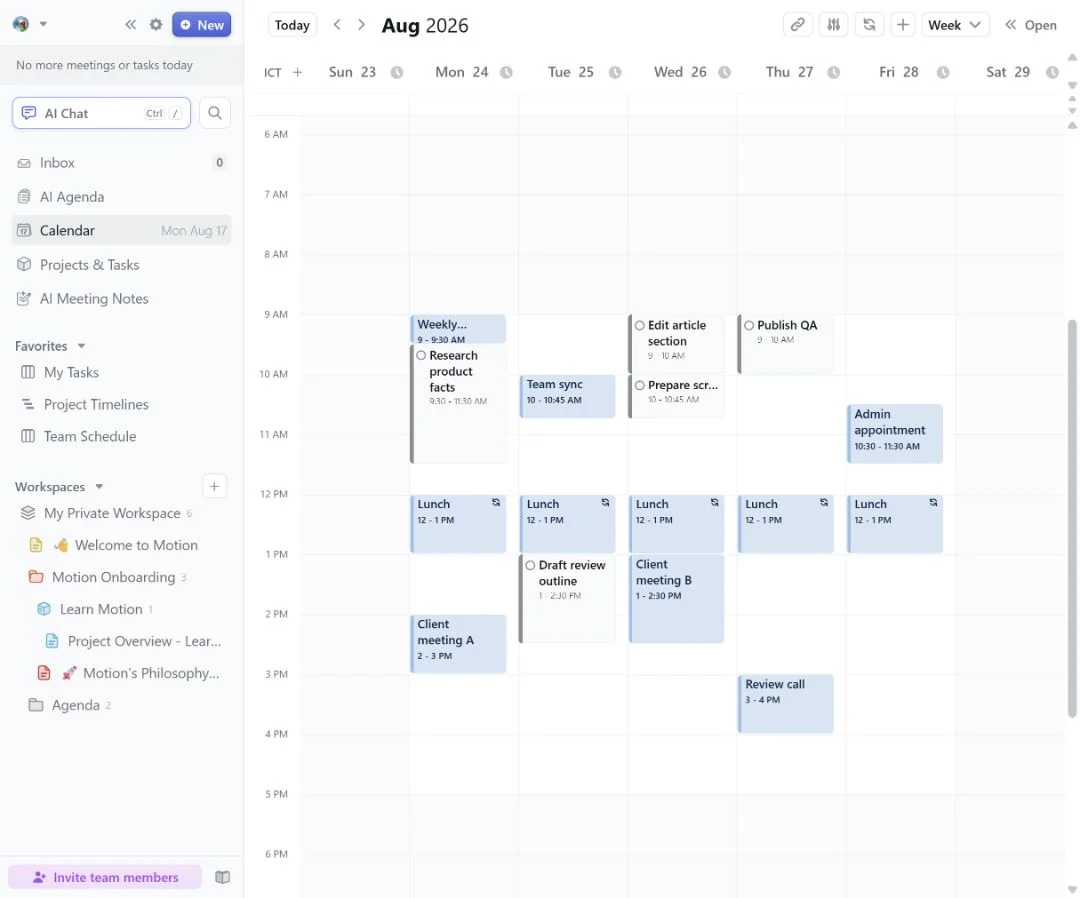
The task editor exposed duration, minimum chunk, start date, deadline, priority, and schedule. However, it used date-level deadlines rather than the exact deadline times in the original benchmark. I therefore treated this as deadline-date compliance, not exact deadline-time compliance. Motion cannot optimize for a constraint its form did not encode.
Ordinary calendar conflicts were handled cleanly
When I inserted an urgent meeting from 1:00 to 3:00 p.m. Tuesday, Motion moved the affected 90-minute outline to 3:00–4:30 p.m. Other visible tasks retained their slots in the paired screenshots.
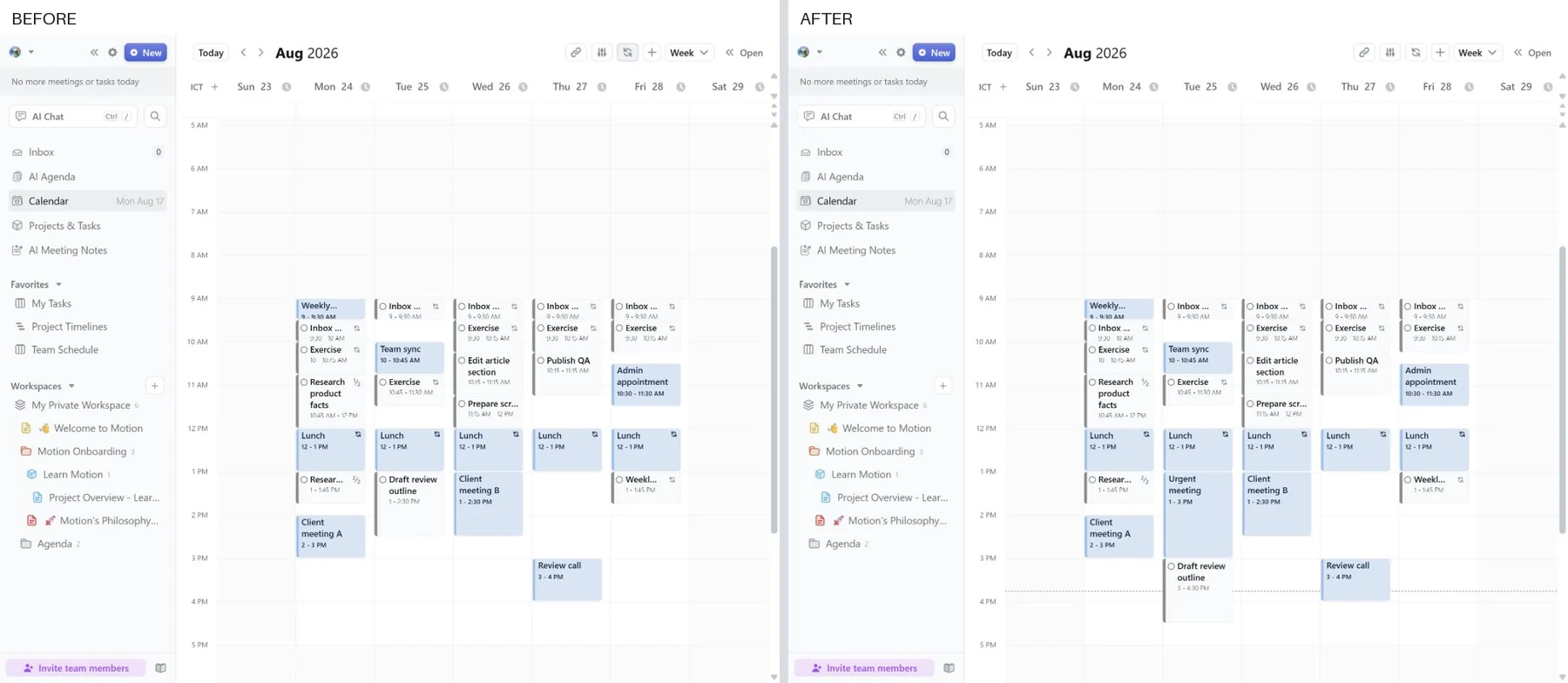
Moving a Wednesday client meeting created a tighter gap. Motion split a 45-minute screenshot task into 30 minutes before the meeting and 15 minutes after lunch, matching its configured 15-minute minimum chunk.
One result was harder to interpret. A two-hour task with a saved one-hour minimum chunk remained split into 75- and 45-minute blocks after refresh. I repeated the check, but could not find documentation showing that a shorter final remainder should be treated as an error. I would not call this a bug based on one case; it does show that the selected minimum did not describe every resulting block.
Overload warnings were useful, but hard deadlines were aggressive
I added an eight-hour task that started and was due Friday, when the calendar lacked eight free hours.
With an ordinary deadline, Motion scheduled part on Friday, placed the remainder after the deadline, and displayed a red Scheduled past deadline warning. Its Resolve menu explained the projected late date and offered changing the deadline, doing the task as soon as possible, turning on a hard deadline, completing it, or cancelling it.
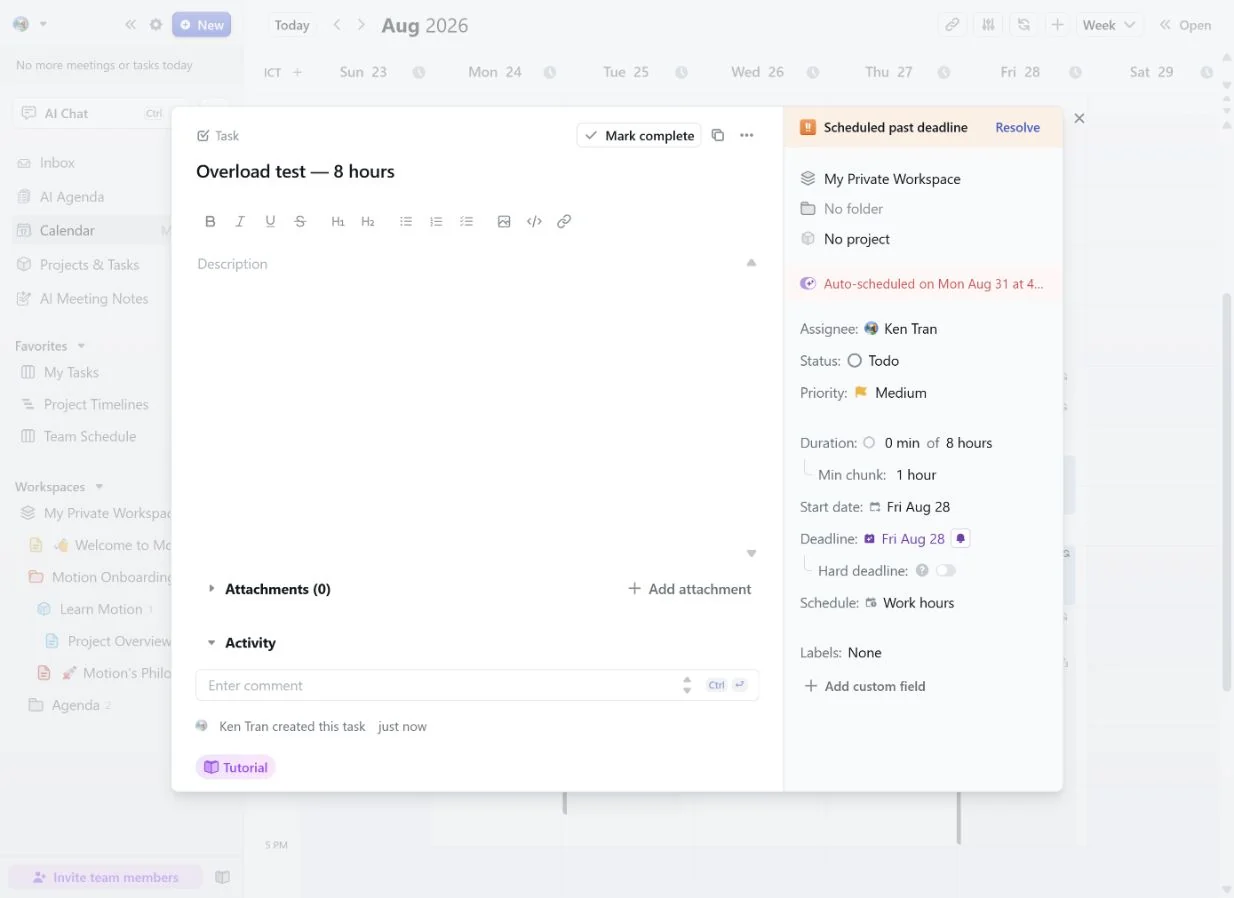
Motion did not pretend the impossible workload would fit, which is exactly what an overload warning should do.
Turning on Hard deadline changed the tradeoff. Motion placed all eight hours before Friday’s deadline, including blocks at 5:30–7:45 a.m. and 8:00–10:30 a.m.—outside the configured 9:00 a.m.–5:00 p.m. Work schedule.
Hard deadlines are useful when a date truly matters, but they are not a free solution to overload. In this test, Motion satisfied the date by consuming time the normal schedule was supposed to protect.
Manual control is powerful enough to create conflicts
Dragging an auto-scheduled task opened a confirmation explaining it would become fixed-time and stop auto-rescheduling until the block ended. After confirmation and a full refresh, the placement remained—even though the chosen slot overlapped part of a fixed review call.
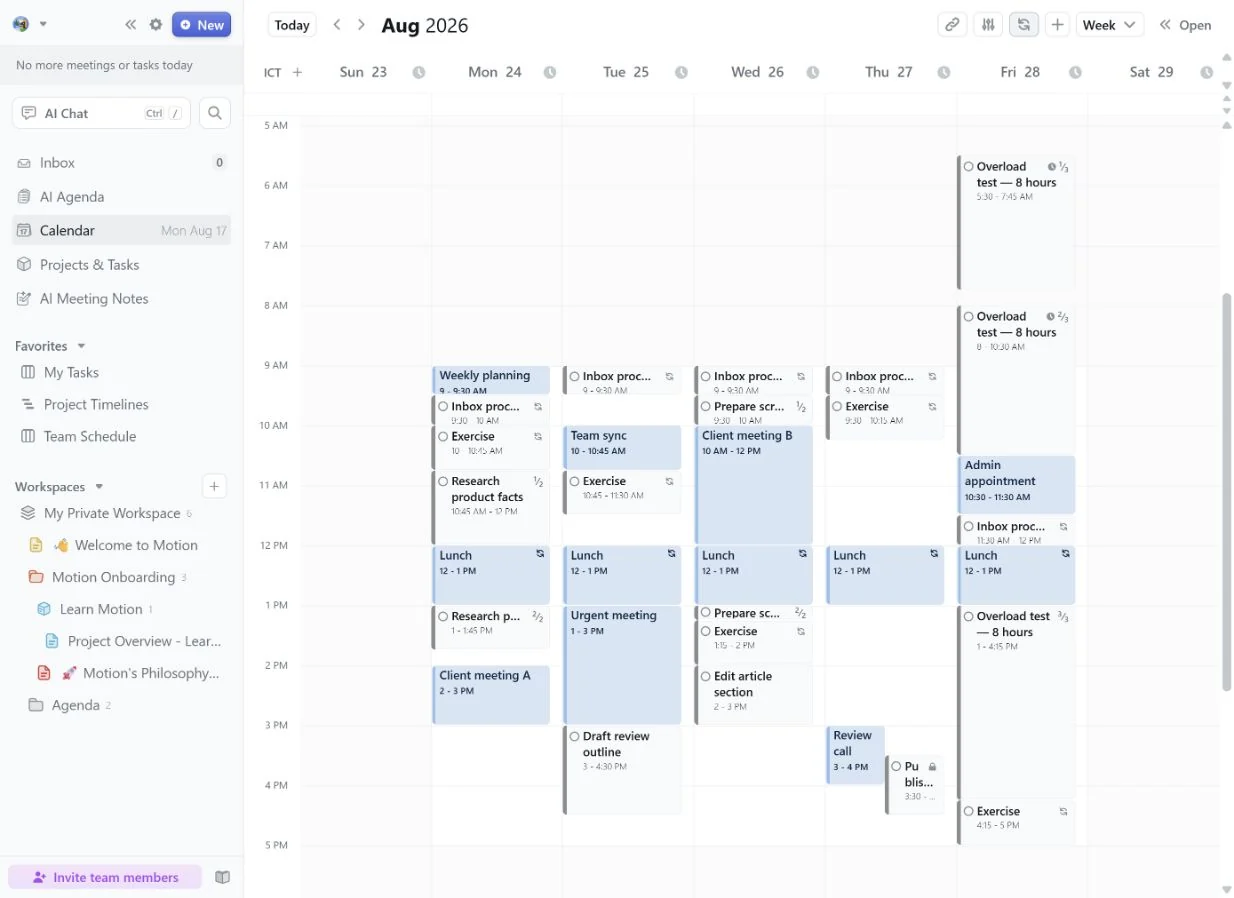
Motion did not create this conflict on its own; I explicitly overrode the scheduler. The result still matters because it marks the boundary of the automation. Once you take manual control, Motion lets your decision stand, even when it creates an overlap.
Priorities, dependencies, and schedules add real depth
In a matched loaded test, a High-priority task stayed before its deadline while a Low-priority task created first was pushed late. Priority clearly affected placement, although one scenario cannot establish a universal ranking formula.
Dependencies required a project. I did not find blockers in the standalone task editor. After moving the relevant work into a project, Motion exposed Blocked by and Blocking fields and scheduled a successor after its blocker.
The staged-project test added an important limitation: dependency selection showed tasks in the same stage, but not the task I tried to select from another stage. Within QA, I set Publication QA to wait for Fact check. Motion scheduled Fact check from 9:00–9:45 a.m. and Publication QA from 9:45–10:15 a.m. After I completed Fact check, the dependency stayed in the record and Publication QA moved into the newly free 9:00–9:30 a.m. slot.
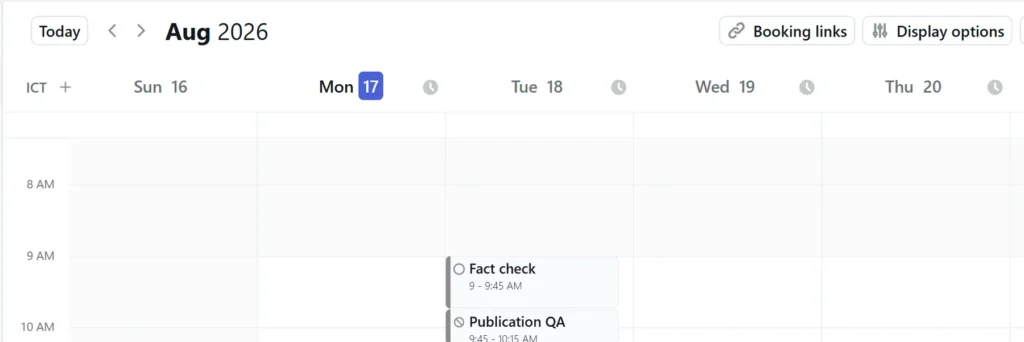
The project Task List went beyond a calendar queue with List and Kanban views, custom views, filters, ETA, assignee, duration, deadlines, stages, status, labels, guests, dependencies, and schedule fields.
Stages were more rigid than the rest of the project controls. I could adjust a stage deadline, but the tested interface exposed no visible move or rename control after creation. Advancing a project moved unfinished tasks to the next configured stage, warned that moved tasks would lose blockers, and left the previous stage canceled and unavailable for reassignment. Stage order therefore deserves careful setup before work begins.
Separate schedules also worked as expected. Exercise initially appeared inside Work hours. After I created Personal hours from 6:00 to 9:00 p.m. and reassigned the recurring series, each weekday occurrence moved to 6:00–6:45 p.m.
Taken together, these controls make Motion feel more like a work platform than a calendar add-on. They also explain why it can feel excessive for a short personal task list.
AI Chat showed promise, but reliability was mixed
I asked AI Chat to create a 30-minute Medium-priority task with both its start and deadline on August 21. Motion parsed the request into a confirmation preview and required approval.
The final task retained the requested duration, priority, Work schedule, assignee, and deadline—but its start date was August 20, one day earlier than confirmed.
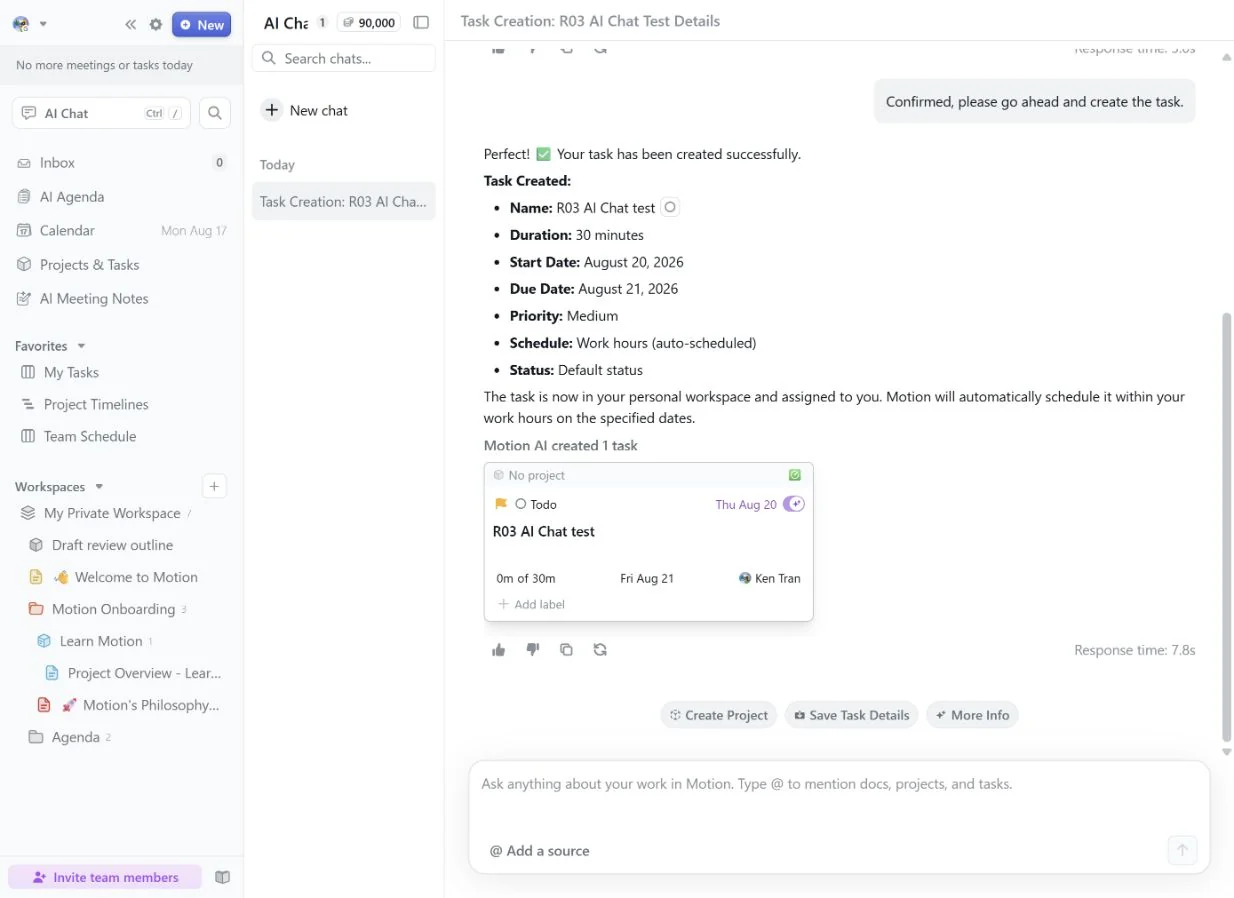
Motion later labeled the task On track and correctly explained its scheduled date preceded its due date. It did not flag the difference between the saved start field and the confirmation.
One prompt cannot establish an error rate, but it was enough to change how I would use the feature: I would check every AI-created date after confirmation.
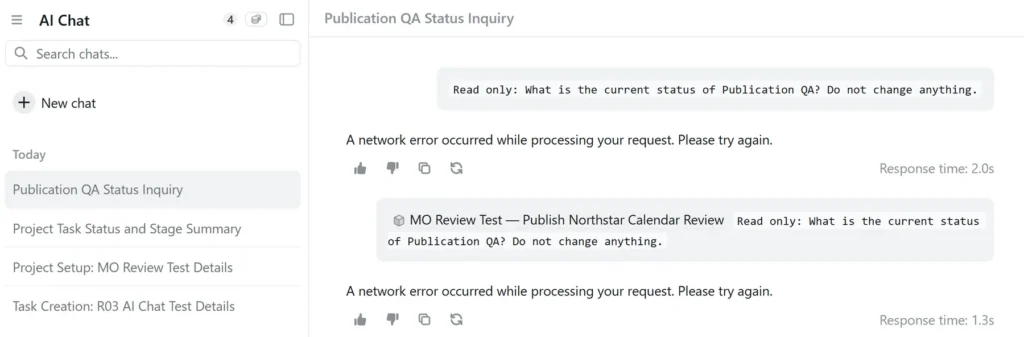
Later tests raised a broader reliability concern. Two project prompts and a read-only status request returned network errors. I reproduced the same error manually with a single prompt, first without project context and then with the project attached. The failure was real in this account and session, although it does not prove a service-wide problem.
AI Agenda generated an editable daily document beside the calendar. On the day I checked it, the agenda correctly reported that nothing was scheduled or due because the test workload began the following week. I did not test its recommendations on a busy day.
Docs and AI project generation needed close supervision
I created a native Motion document for a synthetic product brief. The editor accepted and auto-saved both the title and body in the Private Workspace, so Docs can at least keep planning context beside projects and tasks.
The writing suggestion itself was good. I gave the document AI an exaggerated paragraph and asked for a neutral 45–60-word replacement. It kept the fictional product’s $12 price, 14-day trial, scheduling strength, and team-planning limitation while removing the unsupported “best” and guaranteed-productivity claims. It then asked for confirmation before applying the edit.
Applying the suggestion was another matter. Motion said it had made the confirmed replacement, but the original paragraph was still there when I checked immediately and again after waiting. The document remained locked while generation continued, so I eventually stopped it manually.
The lock was still present in a later session. The original document displayed Unassigned is editing with AI, document temporarily locked, and a new blank control document initially showed the same message. A later screenshot showed another new document accepting edits normally, which points to a session or state problem rather than a permanent account-wide failure. Global Search also missed the original document by exact title and by Northstar, despite the document remaining visible and directly accessible from the sidebar.
The dedicated Create Project Template with AI (beta) workflow showed a similar verification need. It generated the requested Research, Draft, and QA stages and all five task names, but changed a 60-minute task to 30 minutes, changed a 45-minute task to 30 minutes, and assigned Low priority to four tasks despite the prompt specifying Medium. The dependency requested for Draft was not visibly populated in the preview.
I discarded the inaccurate template rather than adding it to the active workspace.
My takeaway across these AI tests is simple: Motion can provide a useful starting point, but I would verify dates, durations, priorities, dependencies, and document changes before relying on the result.
The two-turn Docs AI interaction consumed five credits. Generating the project-template preview consumed one credit. The failed AI Chat attempts did not visibly consume credits.
Google Calendar publishing was fast and reversible
Motion initially kept tasks inside its own calendar. I enabled Show tasks on Google & Outlook Calendar, but keep tasks as free.
The blocks appeared on Google Calendar by the first verification, in under one minute. A live event showed Availability set to Free, and I found no visible duplicates.
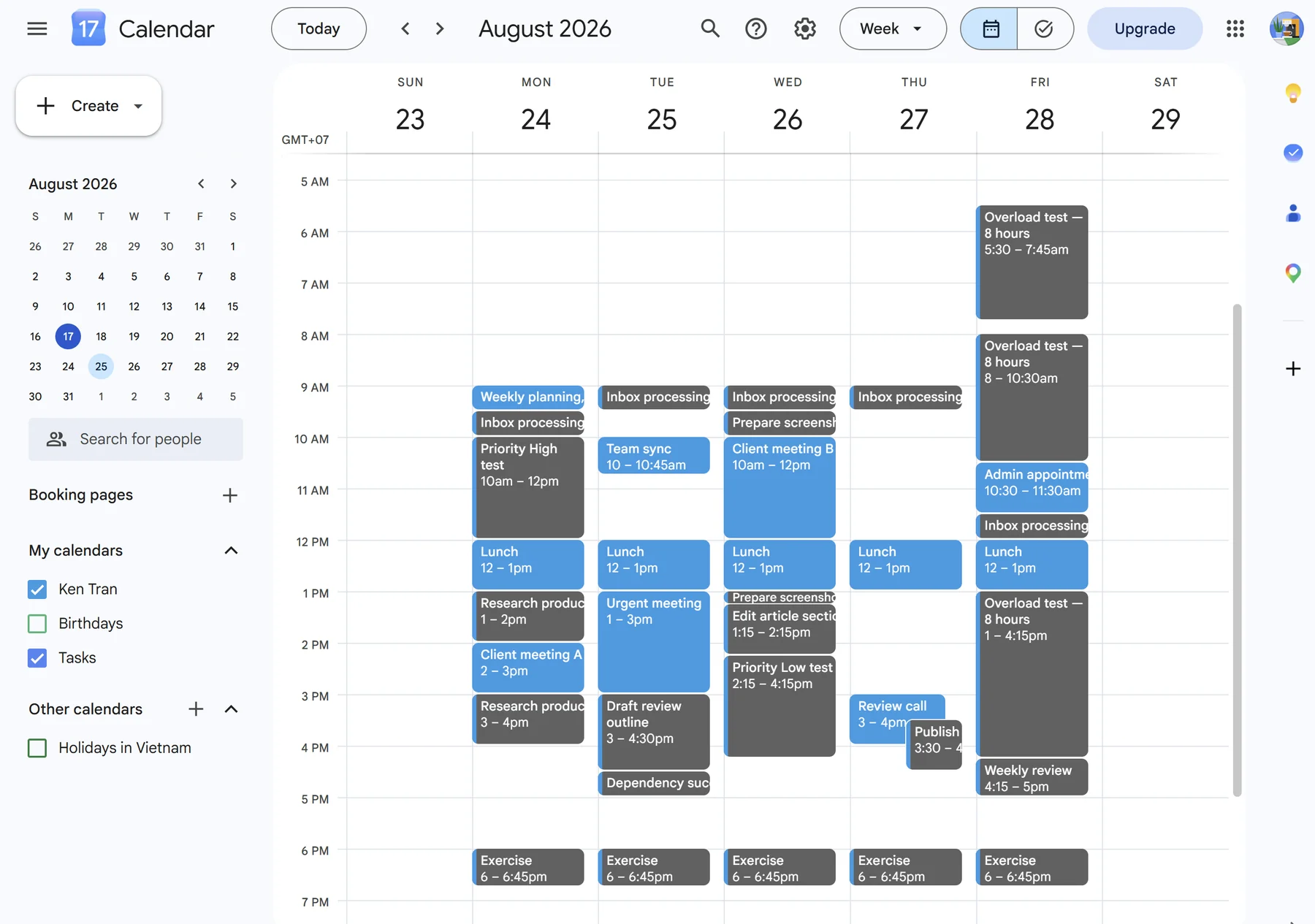
When I disabled outward display, the Motion-created blocks disappeared while the underlying tasks and unrelated Google events remained. The on/off behavior was clean in this account.
Booking Links covered the core scheduling workflow
I created a reusable 30-minute booking template and opened its public guest page without sending the link to anyone. The configuration combined Work-hours availability, a rolling date range, conflict checking against the selected Google calendar, buffer time, a per-day meeting limit, multiple duration options, Google Meet or custom-location controls, reminder emails, extra guests, invitee questions, and a customizable URL.
The guest page displayed available 30-minute slots and opened a clean confirmation form for name, email, optional guests, and a note. With an authorized test address, I completed a 9:00–9:30 a.m. booking. Motion confirmed that it sent the invitation, and the host calendar showed a Busy event with a generated Google Meet link, both attendees, the submitted note, and reschedule/cancellation links. The invitation reached the test inbox with RSVP controls, the Meet button, the submitted response, and guest self-service links intact.
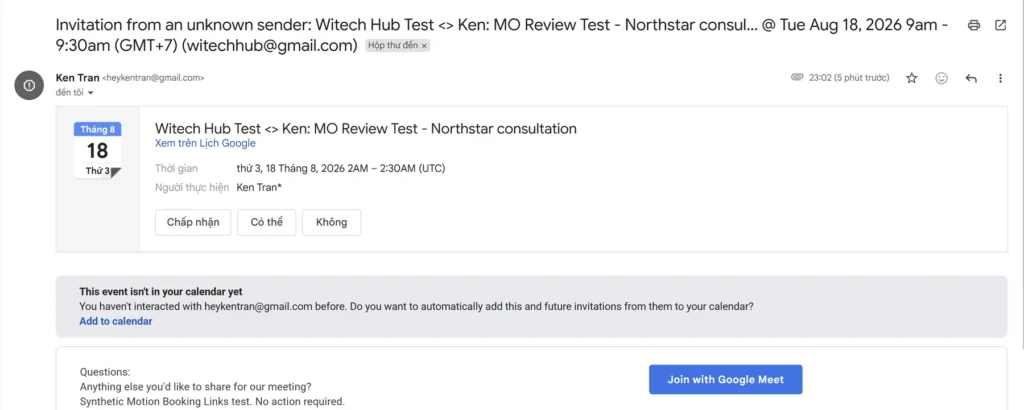
The useful part came after submission. Publication QA already occupied 9:00–9:30 a.m., but its Free calendar block had not removed that slot from the guest page. Once the booking created a Busy meeting, Motion moved Publication QA to 9:30–10:00 a.m. The appointment took priority, while the flexible task stayed on the calendar in a new slot.
Canceling the test meeting returned Publication QA to 9:00–9:30 a.m. I then deleted the booking template and confirmed that its public URL no longer loaded.
Motion pricing: is it worth the cost?
The exact plan used for this review was Individuals Pro AI on an annual plan with one seat and a seven-day free trial. Motion’s signed-in plan-selection screen priced it at $29 per month, and the Billing page showed the corresponding $348 yearly renewal. The Individuals month-to-month option was $49 per month.
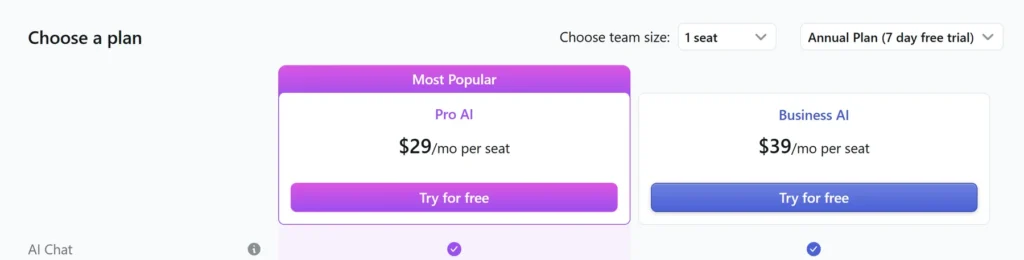
Motion’s Pro AI prices differed by audience as well as billing cycle at the time of the review. The current options are listed on Motion’s official pricing page:
| Pro AI plan | Monthly billing | Annual billing |
|---|---|---|
| Individuals | $49/month | $29/month, charged as $348/year |
| Teams | $29/seat/month | $19/seat/month, billed annually |
The selectors matter: $29 can refer to Individuals on annual billing or Teams on monthly billing, while $19 applies to Teams on annual billing. Check both Individuals/Teams and the billing cycle before comparing prices.
The public Pro AI table listed 7,500 AI credits per month. Because the tested account used annual billing, Billing showed a 90,000-credit annual pool—exactly 7,500 × 12—with no carryover. Only 40 credits had been used when I verified the account, which is not enough data to judge whether the allowance will suit a heavy AI Chat or meeting-notetaker workflow.
I tested Individuals Pro AI only. The Teams figures are included to clarify the pricing selector, not as evidence about team collaboration or Business AI.
The price is easier to defend if Motion replaces manual time blocking, a project board, dependency tracking, and the routine of rebuilding your calendar whenever meetings move. It is much harder to defend for lightweight personal scheduling alone.
The seven-day trial is visible directly in the tested account’s plan-selection screenshot, while the $348 renewal came from its Billing page. Motion’s Terms of Service say the payment method is automatically billed when the trial ends unless the trial is canceled beforehand. The subscription-cancellation flow was inspected but not completed, so this review does not claim an independently verified post-cancellation result.
Motion pros and cons
Pros
- Built a workable schedule around fixed events and adapted cleanly to ordinary meeting conflicts.
- Exposed impossible workloads with clear warnings and practical resolution choices.
- Honored a tested dependency and rescheduled the successor when its blocker was completed.
- Combined priorities, recurring work, separate schedules, project stages, and multiple task views.
- Published Free task blocks to Google Calendar and removed them cleanly when disabled.
- Completed the Booking Links workflow from guest selection and inbox delivery through cancellation and public-link cleanup.
Cons
- Hard deadlines could place work outside the configured Work schedule.
- Manual overrides could preserve an explicit calendar conflict.
- AI workflows showed date drift, network errors, inaccurate generated fields, an unapplied edit, and missed search results.
- Stages exposed no visible move or rename control, while dependencies required a project and were stage-limited in this test.
- A final task segment could be shorter than its saved minimum chunk, and exact deadline times were unavailable.
- The price is difficult to justify for basic personal time blocking alone.
Who should use Motion?
Motion suits consultants and solo operators managing client projects, especially when meetings frequently disrupt the week. It also fits users who want project tasks and calendar time in one system.
Consider a simpler alternative if your task list is small and personal, you already have a project manager you will not replace, you want the lowest-cost auto-scheduler, or you dislike configuring priorities, schedules, chunks, and deadline behavior.
If your decision is specifically between Motion and a focused scheduler, read our FlowSavvy vs Motion comparison for the controlled head-to-head results.
Final verdict: Is Motion worth it?
Motion can be worth the price when automatic scheduling, project structure, dependencies, documents, and booking tools all belong in the same workflow.
Its core scheduling was the strongest part of the test. Motion built a sensible baseline, moved work after conflicts, flagged impossible capacity, reacted when a blocker was completed, and made room for a real booking without dropping the displaced task.
I would still keep a hand on the controls. Hard deadlines reached outside normal hours, manual placement preserved an overlap, and stage setup was awkward to revise. The AI tools were less dependable than the scheduler: I encountered date drift, inaccurate generated fields, an edit that did not persist, missed search results, and network errors. Motion works best as a capable planner you supervise, not as an authority over your week.
I did not test AI Meeting Notetaker. Its transcript, summary, action-item extraction, and Zoom/Google Meet behavior are therefore outside this review’s hands-on verdict.
If the broader platform matches your workflow, use the trial to see whether the reduction in calendar maintenance earns back the cost. If all you want is simple task-to-calendar scheduling, Motion is likely more platform than you need.
Frequently asked questions
Does Motion automatically reschedule tasks?
It did in our controlled conflict tests. An urgent meeting moved the affected task, and moving another event caused a chunkable task to split around the conflict.
What happens when Motion cannot meet a deadline?
With an ordinary deadline, the overloaded task was scheduled partly late and received a warning. Hard deadline moved all work before the date, including blocks outside Work hours.
Can Motion sync tasks to Google Calendar?
Yes. Motion published tasks as Free events in our test. Disabling outward display removed those blocks while leaving Motion tasks and unrelated events intact.
Does Motion include Booking Links?
Yes. In the end-to-end test, a guest selected an available slot, submitted a note, and received an invitation with RSVP controls, a Google Meet link, and reschedule and cancellation links. The Busy booking moved a flexible Motion task out of the way. Canceling the meeting returned the task to its earlier slot, and deleting the template disabled its public URL.
Is Motion good for project management?
Motion includes project lists, Kanban views, priorities, stages, assignees, dependencies, schedules, and custom views. Whether it replaces an existing platform depends on team complexity not covered in this solo test.
Is Motion better than FlowSavvy?
Motion offers a broader work platform, while FlowSavvy focuses more narrowly on personal task auto-scheduling. The better choice depends on whether you need project depth or prefer a simpler, lower-cost scheduler.
Does Motion have a free plan?
The tested account used a seven-day Pro AI trial, not a permanent free plan. Verify current pricing and checkout terms before starting.
Did you test Motion’s AI Meeting Notetaker?
No. This review does not rate its transcripts, summaries, action items, or Zoom and Google Meet behavior. That module was deliberately left out of the hands-on verdict.