
Table of Contents
How to Use MeetGeek AI for your meeting? MeetGeek turns a live meeting or uploaded recording into a transcript, summary, next steps, insights, and a searchable Chat context. For a first run, use a non-sensitive recording and keep access restricted. Check the important details before anyone receives the notes.
This guide follows the uploaded-recording workflow we used for a roughly 42-minute English meeting. MeetGeek processed the file into useful, structured notes, but our test also found transcript errors and AI Chat answers that needed source checking.
What you will create
This workflow produces:
- a processed meeting record;
- a searchable transcript;
- an AI-generated summary and timestamped next steps;
- meeting insights;
- a set of AI Chat answers that you have checked against the transcript.
MeetGeek also supports scheduled meeting capture and bot-free recording routes. We use an uploaded file as the primary tutorial path because that is the route directly documented in our hands-on evidence. It also lets a new user learn the output-review process before enabling automatic joins.
What you need before starting
Prepare the following:
- a MeetGeek account;
- a short, non-sensitive recording, preferably with known decisions and action items;
- permission to record and process the conversation;
- time to review the output before sharing it;
- a simple evidence key containing the names, numbers, decisions, owners, and deadlines you expect MeetGeek to find.
In the account we examined, the Upcoming Meetings screen offered Google Calendar, Outlook Calendar, and a Record adhoc meeting option. MeetGeek also documents desktop, mobile, browser, and upload routes. Exact controls can vary by account, plan, and product rollout.
Our test used MeetGeek’s Free plan. After the approximately 42-minute recording was processed, the account showed 2.3 hours of 3 hours available, with the quota scheduled to reset on September 5, 2026 at 15:16 UTC. That balance indicates the recording used about 0.7 hour of the monthly allowance, which closely matches its duration. This is an inference from the remaining balance rather than a separate usage meter. The Free account did not expose a download or export function; it provided buttons to copy the Summary and Transcript content. We did not verify whether paid plans add download or export options.
For current quotas, storage, and download restrictions, use our MeetGeek pricing guide rather than relying on old plan details inside a tutorial.
Step 1: Start with a controlled test
Sign in to MeetGeek and choose a meeting that is safe to use for evaluation. A practice call, a scripted internal discussion, or an existing recording without sensitive customer or employee data is better than an important live meeting.
Include details that make the output testable:
- two or more speakers;
- several proper names or technical terms;
- one explicit decision;
- action items with and without owners;
- at least one deadline;
- one subject that is discussed but should not become an action item.
These details form a small answer key. They make it easier to spot a summary that sounds convincing but changes a decision or assigns work to the wrong person.
Step 2: Review join, consent, access, and recap settings
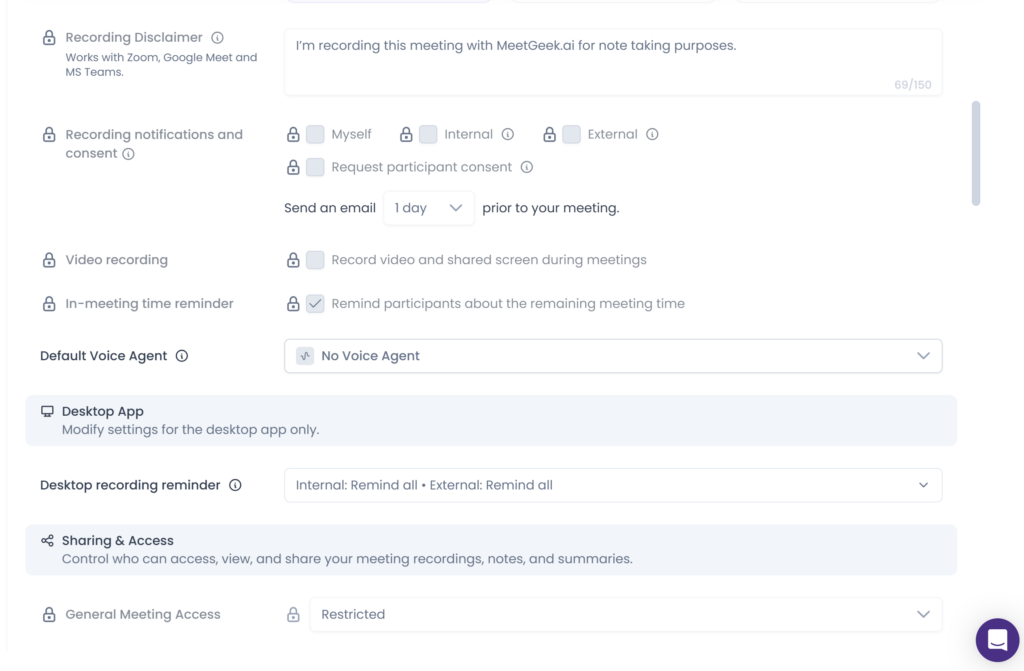
Open Settings → Preferences before connecting a calendar or enabling automatic capture. The account we examined grouped controls under General, Notetaker, Desktop App, Sharing & Access, Meeting Layout, and Notifications.
Choose the meeting language
Set Meeting language to the language most participants will use, or keep auto-detect only if you plan to verify the result carefully. Language support does not mean equal accuracy across accents, overlapping speech, noise, names, or specialist terminology.
Limit automatic joining while you learn the workflow
Inspect Automatic join before connecting a busy calendar. Use a narrow rule at first so MeetGeek does not enter unintended meetings. Broader automation can wait until you know how the notetaker appears, who receives notifications, and who can open the output.
Configure recording notices and consent
The observed settings included a Recording Disclaimer, recording notifications, and an option to request participant consent. MeetGeek explains these options in its official recording consent and notifications guide. They are supporting controls; they do not determine whether a recording is lawful or appropriate in every location or meeting type.
Tell participants clearly that the meeting will be recorded and processed, obtain the permission required for the situation, and follow your organization’s rules. This guide is operational guidance, not legal advice.
Restrict access and recap delivery
Review General Meeting Access, Email Summary, and audience-based permissions. MeetGeek’s meeting sharing guide provides the current vendor explanation. Access to the meeting record and delivery of a recap email are related but separate decisions. Before a first test:
- restrict meeting access;
- avoid sending the summary to all participants automatically;
- disable public access unless it is intentionally required;
- check whether external users can download, share, edit, or view insights;
- confirm the settings again before using a confidential meeting.
Step 3: Capture a meeting or upload a recording
You can connect a supported calendar for scheduled meetings, use an ad hoc or bot-free recorder, or upload an existing file. For a first controlled test, an upload is easy to audit because the source file already exists and MeetGeek does not need to join a live call.
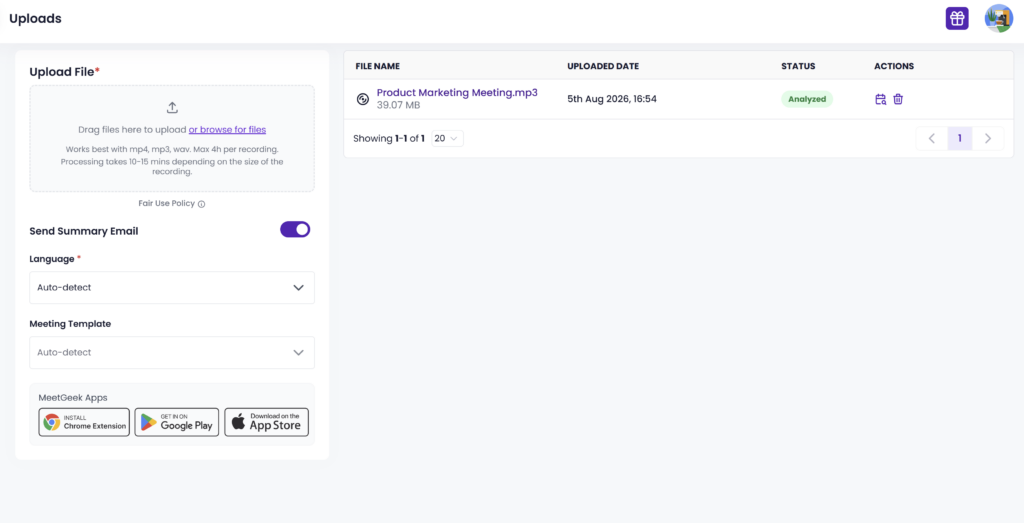
Open Uploads, then drag a file into the upload area or select browse for files. The interface we observed recommended MP4, MP3, and WAV and displayed a four-hour maximum per recording. Treat those labels as interface evidence from August 2026 and confirm them in the current app if your recording is large or unusually long.
Our test used a 39.07 MB MP3 file. The file contained an approximately 42-minute English meeting.
Step 4: Choose the language and template, then analyze
Before selecting Analyze, review these upload controls:
- Send Summary Email: Turn this off if you do not want an automatic email during a private test.
- Language: Select the main spoken language or use auto-detect with additional review.
- Meeting Template: Choose a template that matches the conversation, or use the general/auto-detect option for an initial test.
- Analyze: Start processing only after the file and delivery settings are correct.
The Uploads interface showed a processing-time estimate, but we did not measure elapsed processing time under controlled conditions. Avoid planning a time-sensitive follow-up around that estimate.
When the file status changes to Analyzed, open the meeting record.
Step 5: Review Summary, Conversation, and Insights
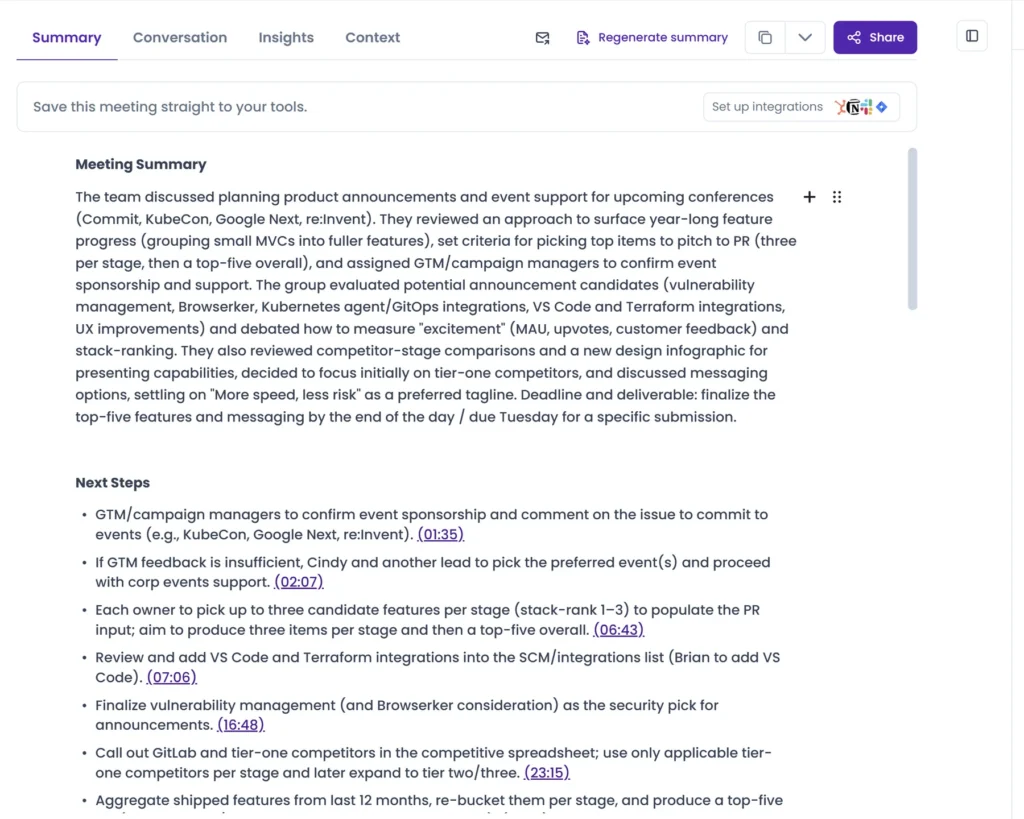
The processed meeting in our test exposed separate Summary, Conversation, Insights, and Context areas, with MeetGeek Chat available beside the record.
Open Summary first to identify the main themes. In our meeting, it captured the planning discussion, key announcement candidates, and the selected line “More speed, less risk.” Timestamped next steps made the underlying conversation easier to inspect. The summary still needs checking when exact wording or responsibility matters.
Next, open Conversation and compare the summary with the transcript. Check Insights last. Coaching or participation signals can be useful for reflection, but they are AI interpretations and should not be treated as objective employee-performance findings without context.
For our full evaluation of the summary, transcript, insights, and Chat results, read the hands-on MeetGeek review.
Step 6: Audit the output before sharing it
Use the transcript as a working source, not an unquestionable record. Review the meeting in this order:
- Confirm the main decision against the exact closing discussion.
- Check every action item for an explicit owner and deadline.
- Replace inferred owners or deadlines with “Not specified” when the source is unclear.
- Verify names, product terms, acronyms, numbers, and quotations.
- Open the timestamp whenever a summary statement looks broader than the source.
- Correct speaker labels if the record makes identity important.
- Restrict access again before sharing the meeting or recap.
- If you need the text outside MeetGeek, use the available copy control for the Summary or Transcript and review the copied content before placing it in another tool.
This step mattered in our test. The transcript used anonymous speaker labels and contained apparent errors in technical names. Meanwhile, the generated summary was useful but could not remove the need to inspect the source when ownership or wording mattered.
Hands-on boundary: These findings come from one approximately 42-minute English meeting. We compared MeetGeek’s transcript, summary, and Chat answers with the saved transcript and known meeting details. This is not a universal transcription-accuracy benchmark.
Step 7: Ask MeetGeek Chat questions that are easy to verify
AI Chat is most useful when the prompt defines both the task and the source boundary. Begin with questions such as:
- “List the action items. Include an owner and deadline only when explicitly stated; otherwise say ‘Not specified.’”
- “What final decision was made near the end? Quote the relevant passage or provide a timestamp.”
- “What was discussed after the 30-minute mark? Include timestamps.”
- “Which technical products or proper names were mentioned? Cite the transcript.”
- “Was a budget approved? If the meeting does not say so, state that clearly.”
Our eight-prompt test produced mixed results:
- Chat retrieved late-meeting discussion with timestamps aligned to the transcript.
- It correctly said that no approved budget or approver was found.
- It found the correct final tagline but incorrectly said the meeting had not finalized it.
- It turned transcript-grounded, discussion-specific points into broader next steps while drafting a follow-up email.
- A later shortening request preserved that broader framing.
Follow-up prompts may preserve an earlier answer’s framing rather than reassess its scope. Compare any email, project task, CRM entry, or client record with the transcript before using it.
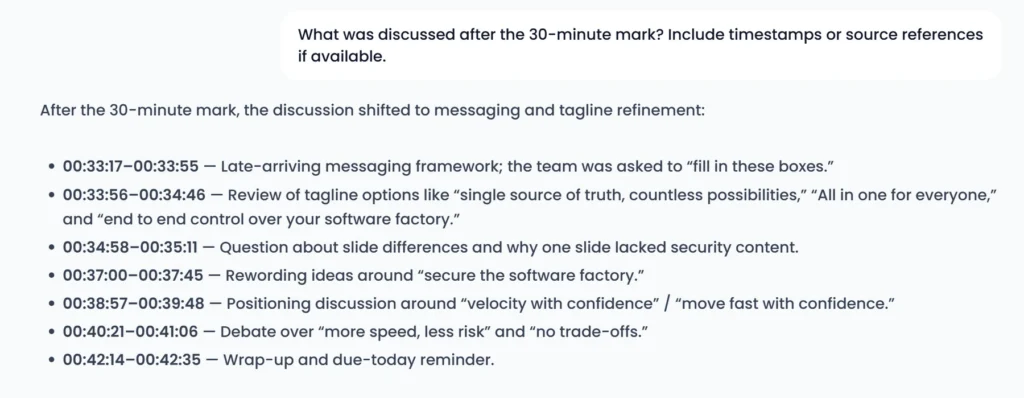
In this session, MeetGeek Chat often remained in Thinking for roughly 20–50 seconds per answer. That was a first-hand workflow observation, not a controlled latency benchmark.
Common MeetGeek problems and how to fix them
MeetGeek is joining meetings you did not intend to record
Return to Settings → Preferences → Notetaker and narrow the Automatic join rule. Also check connected calendars and any meeting-specific notetaker toggles. Do not leave broad automation enabled while you are still learning access and recap behavior.
The uploaded file does not analyze
Confirm that the file type and duration fit the limits displayed in your current Uploads screen. Try a shorter non-sensitive file to separate a file problem from an account or quota problem. If the interface shows an error, save the exact wording before retrying.
The summary misses an important decision
Open the closing part of Conversation and compare it with the summary. A decision can appear in the transcript without being classified correctly by Chat or the summary. Add the corrected decision to your working notes rather than repeatedly prompting until the AI produces the wording you expected.
Owners or deadlines look too certain
Ask Chat to distinguish explicit statements from inference. Then verify the answer at the cited timestamp. If the source does not assign an owner or deadline, record it as unspecified.
Names and technical terms are wrong
Correct them before exporting or sharing. Audio quality, accents, overlapping speakers, and specialized vocabulary can all affect usefulness. Keep a short glossary for recurring names, products, and acronyms when your workflow allows it.
A Chat draft contains details you cannot find in the transcript
Remove any unsupported detail. Ask Chat for a source quote or timestamp, but do not treat a confident restatement as evidence. Our test found that a broader interpretation of grounded content could persist into a follow-up revision.
How to improve MeetGeek output quality
For a cleaner first result:
- use clear audio and reduce overlapping speech;
- state decisions explicitly, for example, “The final decision is…”;
- say the owner and deadline in the same sentence as the task;
- spell out unusual names or acronyms when appropriate;
- choose the correct language and a relevant meeting template;
- keep the first test non-sensitive and easy to verify;
- review the source before sending a recap or triggering an integration;
- use timestamp requests in AI Chat instead of asking only for a polished answer.
A useful meeting record is one a person can audit and correct quickly.
First-meeting checklist
Before capture:
- Use a non-sensitive test meeting or recording.
- Confirm permission to record and process the conversation.
- Review automatic join behavior.
- Select the main meeting language.
- Restrict meeting access.
- Check who receives the recap email.
- Prepare a short answer key with decisions, names, owners, and deadlines.
After processing:
- Read the summary.
- Compare decisions and next steps with the transcript.
- Verify speaker labels, names, technical terms, and numbers.
- Open timestamps for ambiguous claims.
- Test AI Chat with at least one nonexistent-fact question.
- Remove unsupported content from generated drafts.
- Review copied Summary or Transcript text before moving it into another tool.
- Check access again before sharing or copying content out of MeetGeek.
Is the MeetGeek workflow worth using?
MeetGeek works well as a searchable first draft of a meeting, not as a legally authoritative or review-free record. In our test, it organized a long discussion into a readable summary, timestamped next steps, transcript, insights, and Chat context. Revisiting the conversation took less effort than working from the recording alone.
The trade-off is verification. Important names, decisions, owners, deadlines, and generated follow-up content still require a person to check the source. Teams that are unwilling to manage consent, sharing, and review should not enable broad automatic capture.
One controlled meeting is enough to judge whether the output and access behavior fit your workflow. There is no reason to broaden automation before that check.
Frequently asked questions
How do I use MeetGeek for the first time?
Create an account, use a non-sensitive meeting, review automatic join and sharing settings, then connect a calendar, record ad hoc, or upload a media file. After processing, verify the summary, transcript, next steps, and AI Chat answers before sharing them.
Can I use MeetGeek without adding a bot to a meeting?
MeetGeek offers bot-free routes including desktop, mobile, browser recording, and uploads. This tutorial’s hands-on workflow used an uploaded MP3 rather than a bot joining a live meeting.
Should I use auto-detect for the meeting language?
Auto-detect can be convenient, but selecting the main spoken language gives you a clearer setup to audit. Either way, review names, specialist terms, accents, and overlapping speech carefully.
Can I trust MeetGeek action items without checking them?
No. Treat them as a draft. Verify whether the source explicitly states the task, owner, and deadline, and use “Not specified” rather than filling a gap with inference.
Does MeetGeek Chat provide source timestamps?
It can. In our test, one prompt retrieved the discussion after the 30-minute mark with aligned timestamps. Another prompt still misclassified the status of the final tagline, so timestamps and transcript review remain necessary.
How long does MeetGeek take to process a recording?
The interface may display an estimate, but processing can depend on the file and service conditions. We did not run a controlled processing-time measurement, so this guide does not promise a completion time.
Is MeetGeek free?
MeetGeek offers a free entry point for testing the core workflow, subject to current limits. See our MeetGeek pricing and plan guide for the detailed, date-sensitive boundaries.
Bottom line
Configure join, consent, access, and recap behavior before processing a meeting. Then check the summary, transcript, action items, and Chat answers against the source. MeetGeek made our test conversation easier to search and revisit, but it remained a note-taking assistant rather than the final authority on what participants decided or promised.