
Table of Contents
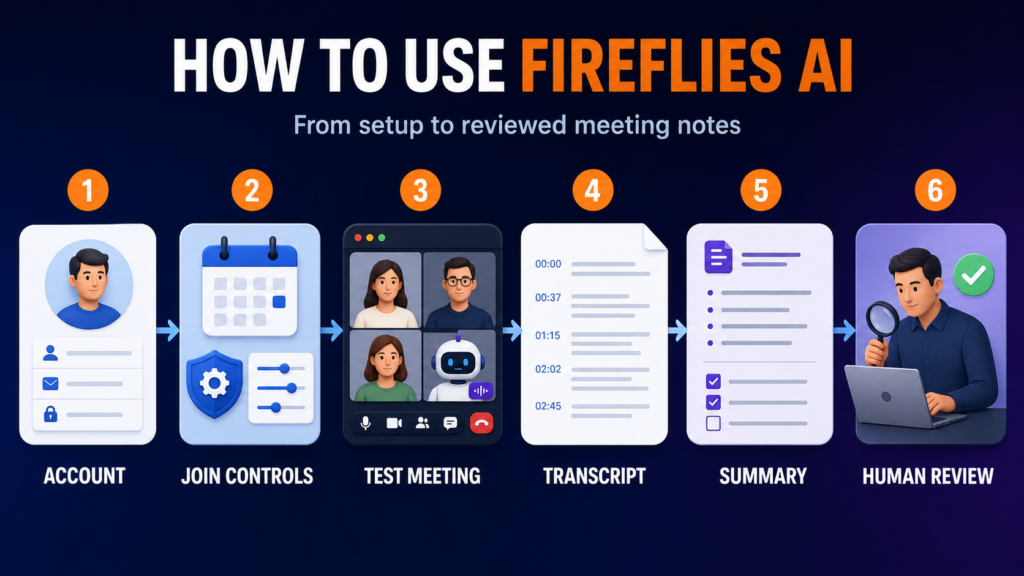
To use Fireflies AI, create an account with Google or Microsoft, connect the calendar that contains your meetings, choose when the Fireflies notetaker may join, and schedule a meeting with a supported web-conference link. After the meeting, open Fireflies to review the transcript, summary, and Action Items.
The basic workflow is simple, but do not skip the join, recap, privacy, and consent settings. Fireflies may otherwise join more calendar events—or email notes more widely—than you intended.
This guide uses a controlled Google Calendar and Zoom workflow. In our Free-plan test, Fireflies joined a roughly 42-minute meeting with five speakers and generated both a transcript and structured notes.
Interface checked: August 4, 2026. Fireflies changes its dashboard and setting names over time. If a label differs slightly in your account, follow the function described in each step.
What you need before using Fireflies AI
Prepare these four items:
- a Google or Microsoft account with the calendar you use for meetings;
- a Zoom, Google Meet, or Microsoft Teams meeting link;
- permission to connect the relevant calendar;
- a short test meeting that does not contain sensitive information.
Fireflies currently documents Google Calendar and Outlook Calendar support and says one calendar is connected per account. Choose the account that holds the meetings you actually want Fireflies to see. Switching to a different calendar may require a different account setup.
For the first test, avoid a customer, HR, legal, medical, or confidential meeting. Use a short internal call and tell every participant that an AI notetaker will record and transcribe it. Consent requirements vary by location and context; a software setting does not replace your responsibility to obtain appropriate permission.
For a deeper deployment review, read our guide to Fireflies AI privacy, consent, and security.
Step 1: Create a Fireflies account
Go to Fireflies and sign up with the Google or Microsoft account linked to your meeting calendar. During Google signup, Fireflies may ask for access to calendar information so it can detect upcoming events and their meeting links. Review the requested permissions before continuing.
No payment card was required when we created a Free account in August 2026. Signup conditions can change, but you can currently begin with the $0 plan and test the core meeting-to-notes workflow before deciding whether to pay.
Step 2: Restrict auto-join before connecting real meetings
This is the most important setup step for a new user.
Fireflies’ current meeting-invitation guide says the default can be to join all calendar events that contain a web-conference link. That is convenient, but it can also send the notetaker into personal, confidential, or unrelated calls.
From the dashboard, expand Upcoming and open Calendar meeting settings. You can also go to Settings → Personal → Recording & Privacy and locate Auto-record meetings. Choose the narrowest rule that fits your test.
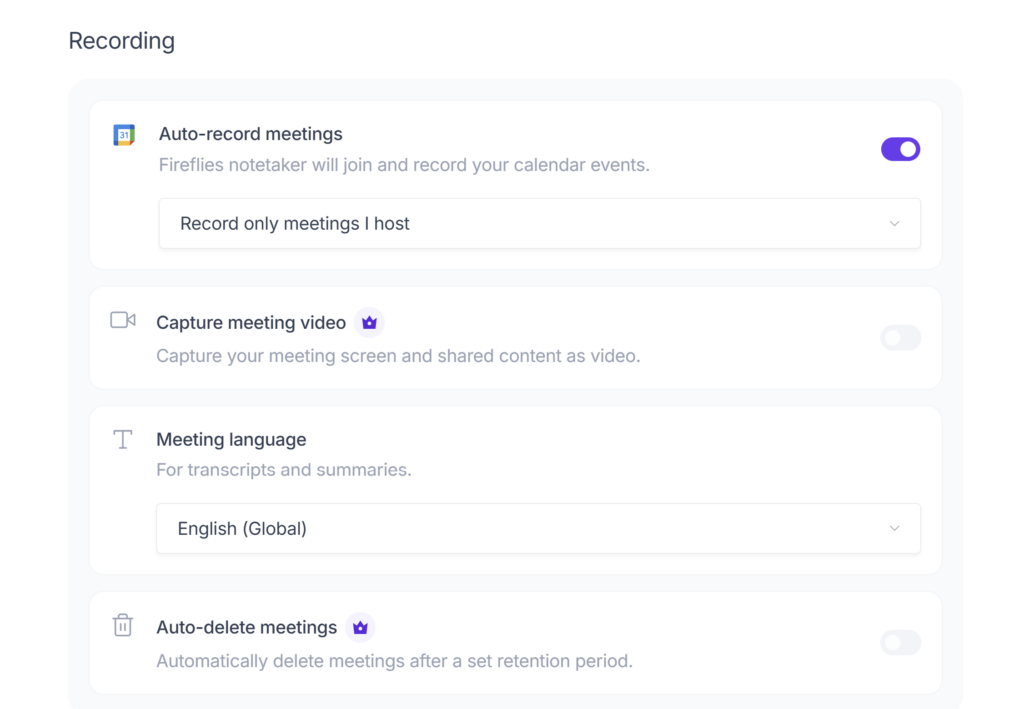
Current documented options include:
| Join option | What it does | Best use |
|---|---|---|
| All meetings with a web-conf link | Joins calendar events that contain a valid meeting link | Established users who want broad automation |
| Only meetings that I own | Joins meetings you host | Hosts who do not want attendee-only calls recorded |
| Only meetings with teammates | Limits joining to internal team events | Internal collaboration |
Only when I invite fred@fireflies.ai | Joins only after manual invitation | Best starting option for a controlled first test |
For a new account, select Only when I invite fred@fireflies.ai. You can broaden the rule later after confirming how the bot, emails, and access controls behave in your workspace.
Step 3: Configure recap, access, language, and consent
Before scheduling the test, inspect four related settings. Fireflies may group them under Recording & Privacy, Meeting Settings, or nearby Personal settings depending on the current interface.
Choose who receives the recap email
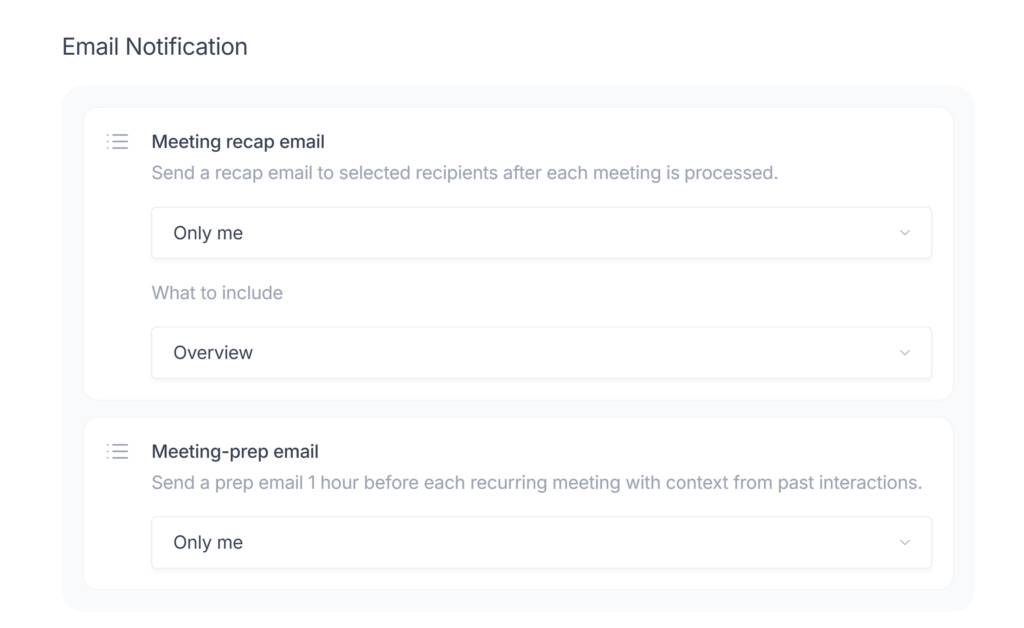
The Meeting recap email or Email Delivery setting controls who receives the post-meeting summary by email. Start with the most restrictive useful option. Do not send a recap to every invitee until you have checked what the email contains and whether external attendees should receive it.
Choose who can open the meeting notes
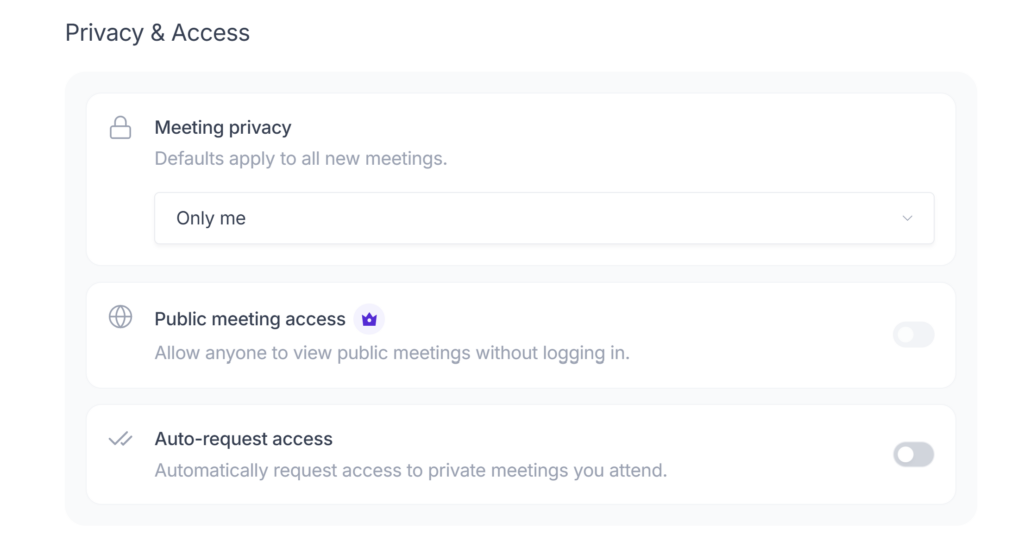
The Meeting privacy or Privacy Settings control determines who can access the meeting inside Fireflies. This is separate from recap email delivery. Stopping an email does not necessarily remove access that has already been granted through a shared link or workspace setting.
For a first test, choose a private or tightly restricted setting and verify the result with a non-sensitive meeting.
Select the meeting language
Choose the language most participants will speak. Fireflies currently defaults to an English option in its documented setup flow. A wrong language selection can reduce transcript usefulness, particularly for names and technical vocabulary.
Configure consent and meeting notifications
Review Meeting Compliance and any consent-message or pre-meeting notification controls available in your account. Use them as supporting notices, not as proof that every participant has legally consented. Tell participants directly that the meeting is being recorded and transcribed, and follow the rules that apply to your location and meeting type.
Step 4: Schedule a controlled Zoom test
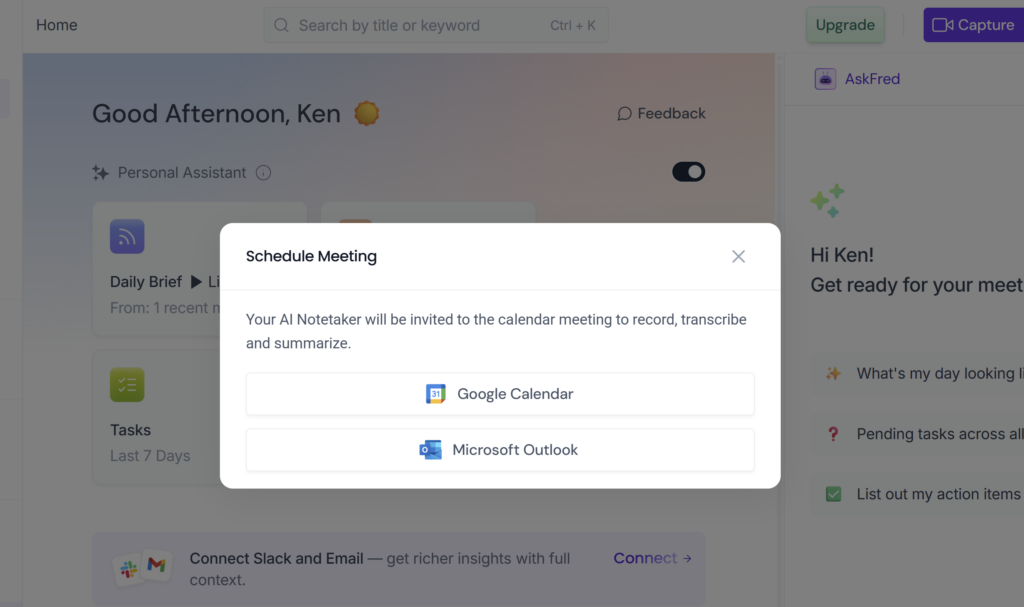
Create a new Google Calendar or Outlook event and add a valid Zoom link. If the Zoom meeting uses a passcode, make sure the complete join URL—including its embedded passcode parameter—is present in the calendar event.
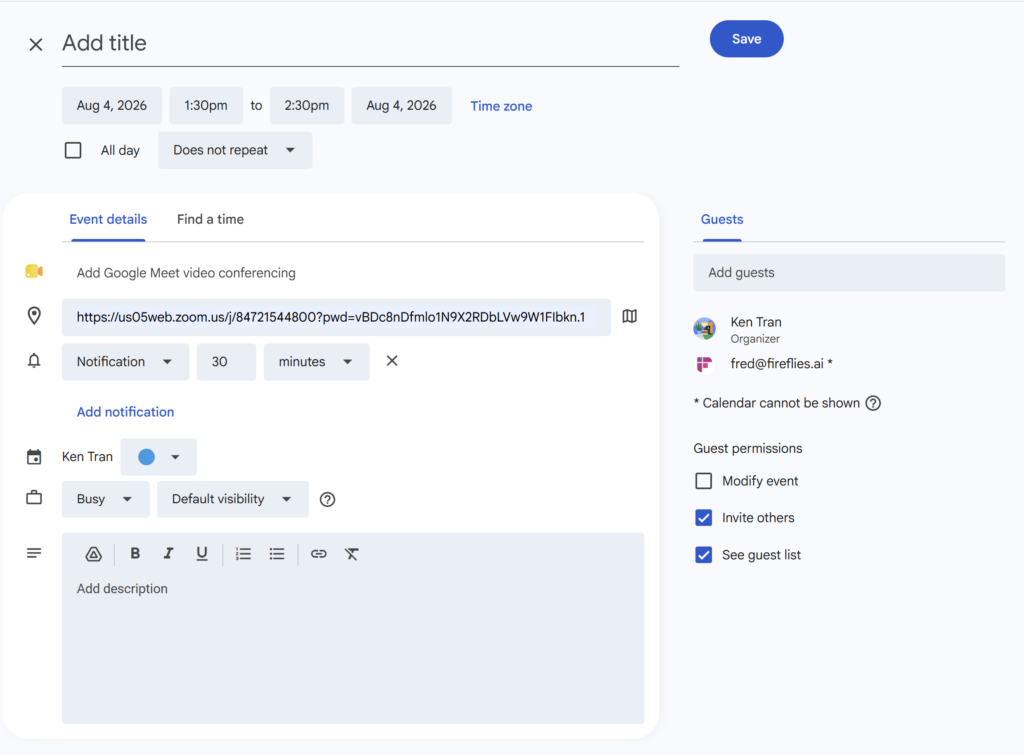
Then invite Fireflies in one of these ways:
- Add
fred@fireflies.aias a guest to the calendar event. - Open the Upcoming panel in Fireflies and enable the notetaker for that specific future meeting.
- For a meeting already in progress, use Capture → Add to live meeting and paste the meeting URL.
The first method is the easiest to audit because the calendar invitation makes your intent explicit. Schedule the test a few minutes in the future, invite one or more informed participants, and use neutral sample content.
Fireflies says its notetaker attempts to join around the scheduled start time. If no one else enters, it may wait for up to 10 minutes before leaving.
Step 5: Admit the Fireflies notetaker in Zoom
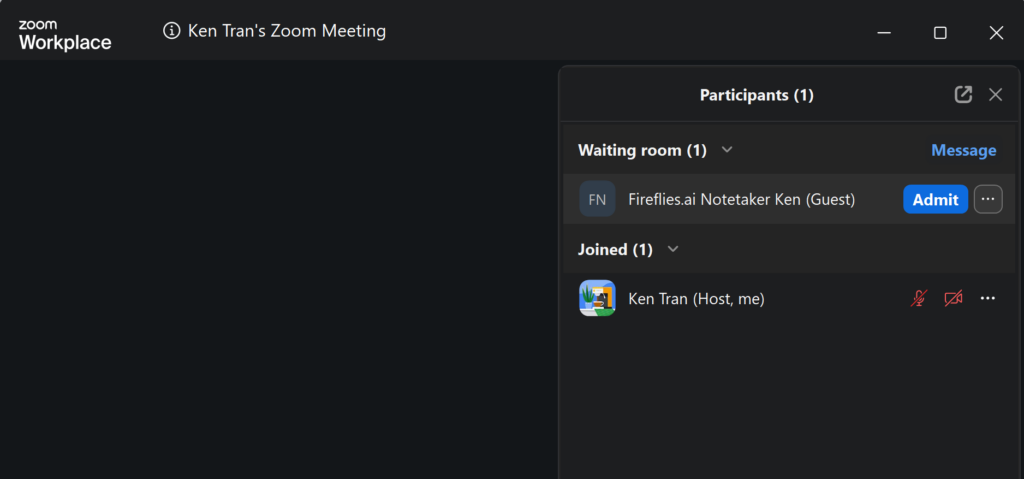
Fireflies joins Zoom as a meeting participant. Depending on the host’s Zoom settings, the bot may appear in the waiting room and require admission.
At the start of the meeting:
- Open the Zoom participant list.
- Look for the Fireflies notetaker participant.
- Admit it if Zoom places it in the waiting room.
- Confirm again that participants know recording and transcription are active.
- Speak normally and include a few test decisions, names, and action items.
In our test, the participant label included the account owner’s name. Renaming that participant inside Zoom only changes the visible Zoom label for that meeting; it is not the same as configuring a custom Fireflies bot name.
Do not assume the bot is recording merely because the calendar event exists. Confirm that it has actually joined the participant list.
Step 6: End the meeting and find the transcript
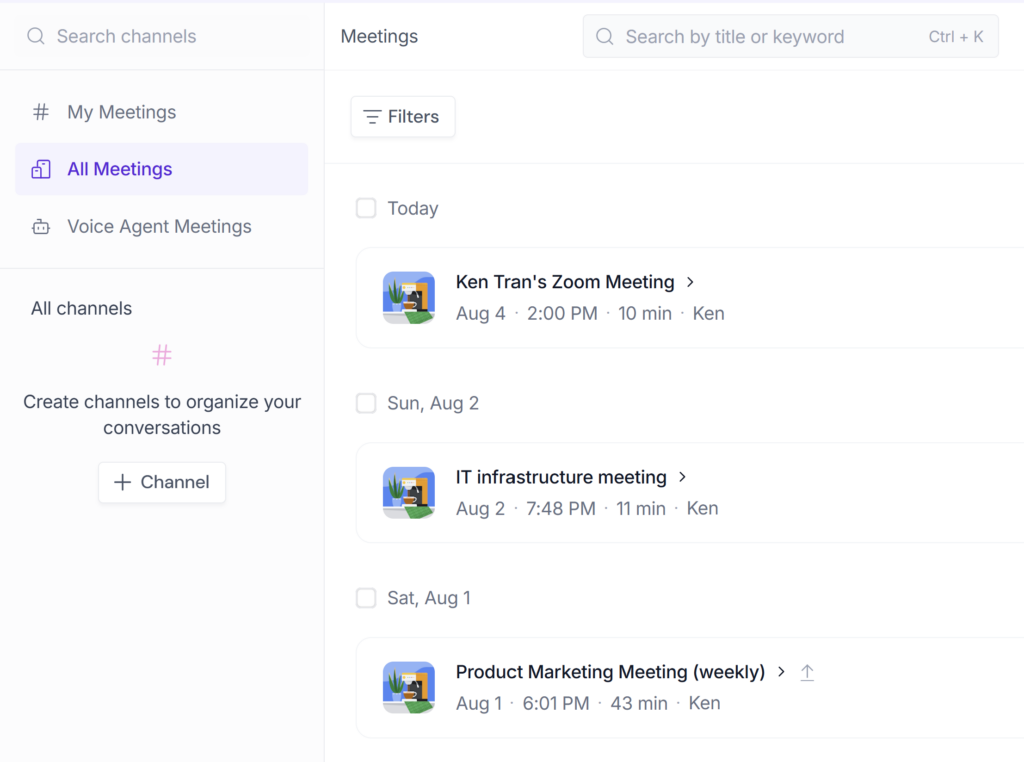
After the call ends, Fireflies processes the captured meeting and places the result in its web workspace. It may also send a recap email according to the setting you selected.
Open the meeting record and look for:
- the full transcript;
- the AI-generated summary or meeting notes;
- topic sections and timestamps;
- Action Items;
- speaker labels;
- sharing and access controls.
We did not measure processing time, so do not treat a specific waiting period as guaranteed. Refresh the workspace or check the recap email if the meeting does not appear immediately.
Step 7: Review the output before sharing it
Fireflies can reduce note-taking work, but the generated result still needs human review. Use this sequence:
- Read the summary to identify the main topics.
- Check every Action Item against the transcript.
- Add or correct the owner and deadline.
- Verify names, product terms, acronyms, figures, and quotations.
- Open the relevant timestamp when a decision is ambiguous.
- Remove or restrict sensitive content before sharing.
In our test, the summary captured the main discussion areas and several meaningful decisions. However, its Action Items lost ownership and deadlines that appeared in the transcript. The transcript was understandable but contained apparent errors in technical names and terms.
This makes Fireflies useful as a searchable first draft, not a replacement for a project owner or an authoritative record.
Hands-on boundary: Our findings come from one approximately 42-minute English Zoom meeting with five speakers on the Free plan. We compared the summary with the Fireflies transcript, not the transcript with the original audio, so we do not claim an overall transcription-accuracy percentage.
For the complete strengths, weaknesses, and buyer-fit verdict, see our hands-on Fireflies AI review.
What to do if Fireflies does not join
Check these items in order:
Confirm the meeting link is in the calendar event
Fireflies needs a supported web-conference link it can detect or a live-meeting URL you submit manually. If Zoom uses a passcode, use the full invite URL.
Check the join rule
If you selected invite-only, confirm that fred@fireflies.ai is actually an event guest or that the meeting toggle is enabled in Upcoming.
Check the Zoom waiting room
The bot may be waiting for the host to admit it. Open the participant panel and review waiting-room entries.
Confirm the meeting has started
Fireflies can leave if nobody joins within its documented waiting period. Start the meeting at the scheduled time and make sure at least one participant is present.
Review restrictive Zoom settings
Authenticated-user requirements, end-to-end encryption, waiting-room policies, or disabled computer audio can prevent a third-party notetaker from joining or capturing the call. Do not weaken an organization’s security controls without administrator approval. If the required security setting conflicts with Fireflies, record that workflow as unsupported rather than changing policy silently.
First Fireflies meeting checklist
Before the meeting:
- Use a non-sensitive test call.
- Connect the correct Google or Outlook calendar.
- Set auto-join to invite-only.
- Check recap email recipients.
- Restrict meeting-note access.
- Select the correct spoken language.
- Tell participants about recording and obtain appropriate consent.
- Put the full Zoom URL in the calendar event.
- Invite
fred@fireflies.aior enable the specific meeting.
During and after the meeting:
- Confirm the notetaker joins the participant list.
- Admit it from the waiting room if required.
- Check the transcript, summary, Action Items, owners, and deadlines.
- Verify names, numbers, and technical terms.
- Review privacy and sharing before sending notes.
Frequently asked questions
How do I use Fireflies AI for the first time?
Create an account with the calendar you use for meetings, set auto-join to invite-only, configure recap and privacy controls, then add fred@fireflies.ai to a test calendar event containing a Zoom, Google Meet, or Microsoft Teams link. After the meeting, review the transcript and summary in Fireflies.
Does Fireflies automatically join every meeting?
It can, depending on your auto-record setting. Current options let you join all meetings with a conference link, only meetings you own, only teammate meetings, or only meetings where Fireflies is manually invited. Invite-only is the safest starting point.
Do I need to install Fireflies in Zoom?
Not for the basic calendar workflow. Fireflies documents that its notetaker can detect a Zoom link in a connected calendar and join as a participant. The host may still need to admit it from the waiting room.
Can I add Fireflies after a meeting has started?
Yes. Fireflies currently provides Capture → Add to live meeting, where you can submit the active meeting URL.
Is Fireflies AI free to use?
Fireflies has a $0 Free plan for testing the core workflow, subject to storage, AI-credit, download, and video limits. See our guide to the Fireflies Free plan for the current boundaries.
Should I trust Fireflies Action Items without checking them?
No. Treat them as a draft. In our test, the summary captured real tasks but omitted meaningful owner and deadline information present in the transcript.
Bottom line
The best way to learn how to use Fireflies AI is to run one controlled, non-sensitive meeting before enabling broad automation. Connect the correct calendar, use invite-only, restrict recap and note access, tell participants that the meeting will be transcribed, and confirm the bot actually joins.
After the meeting, review the transcript and summary as working notes. Fireflies can make a long conversation easier to search and revisit, but a person should still verify assignments, deadlines, names, figures, and technical language.